|



headkaze
-
Posts
5120 -
Joined
-
Last visited
-
Days Won
37
Content Type
Profiles
Forums
Events
Downloads
Store
Articles
Everything posted by headkaze
-
Errr.. when you select a game in a list you should see the menu to add to favourites.
-
Bump in case you missed it. Version 1.1 now saves your LED settings so you only need to set them up once.
-
I forgot your English is not so good. This is the correct line: Command=chankast_launch.exe [ROMPath]\[RomFile] NO " " Also look here.
-
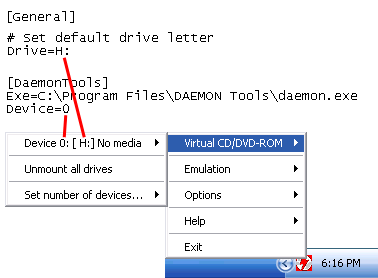
Okay sbaby, now I have something to work with! Download chankast_launch.zip from the first post again to make sure you have the very latest version. I have changed a few things since I first posted it. Plus there is a brief chankast_launch.txt textfile you can read that explains how to set things up. Command=chankast_launch.exe "[ROMPath]\[RomFile]" First off you need to remove the double quotes from the line above. # ROM Path ROMPath=C:\Programmi\Giochi\Emulatori\Chankast\Roms\ The latest version doesn't use any of the above (now the Rom path is gathered from GameEx), you can delete that, but it dosn't matter if you leave it. # Set default drive letter Drive=H: You do have Daemon Tools installed don't you? If so make sure the the Drive letter above matches the Virtual drive letter in Daemon Tools for Device 0. [DaemonTools] Exe=C:\Programmi\DAEMON Tools\daemon.exe Device=0 Again, just make sure the Device is set to the same one as the drive letter. If you are unsure about that, look at the image attachment I posted in this thread a few posts above this one. [Virtua Striker 2 - Ver 2000] CPU=120 ZWrite=False ZWriteAlpha=False CapcomHack=False CableType=NTSC This looks okay if the game is called Virtua Striker 2 - Ver 2000.cdi but remember you only need to add this stuff in if you know the game needs it. I would remove it for now, and only add specific settings for games you know that need them.
-
Yeah, no problem Tom. Do what you want with it. Swindus has given permission to use LEDWizLighter in any project (including FE's), and of course same applies for my part which was LEDWizGen. Really it would be better to totally integrate it into GameEx using just the ocx, so it can do things like random lighting during attract mode, showing buttons while scrolling through the game list etc. But for now this is fine, since I have never actually seen a single request for LEDWiz support in GameEx yet, maybe we should just leave it like this for now. BTW This method was an idea I got from adding BetaBrite support in GameEx. So now GameEx supports BetaBrite, BPP-440, PJRC and LEDWiz hardware!
-
Thanks to swindus (author of Mala) and yours truly, LEDWiz support has been added to GameEx. USAGE: LEDWizLighter.exe 1942 2 0 1942: config file name, results in: 1942.cfg 2: Global Pulse Speed (1-7, default 2 if empty) 0: Fast Com Switch (0 or 1, default 0 if empty) It's quite basic support for now, basically it lights up the controls for each game when you launch it. Download the attached zip file and use LEDWizGen to generate the cfg files necessary for each game. Copy them into a directory (Eg. C:\Emulators\Mame\LEDWiz) Then you simply add the following commands to your Advanced MAME Settings: Run on Launch: C:\LEDWizLighter\LEDWizLighter.exe C:\Emulators\Mame\LEDWiz\[ROM] 2 0 Run on Exit: C:\LEDWizLighter\LEDWizLighter.exe AllLedsOff EDIT: New Version 1.1 automatically loads and saves your LED settings. LEDWizLighter.zip
-
I can hardly be expected to help you when you say something as vauge as "ERROR IN COMMAND LINE"! All I can say to that is, really?
-
Why not just use the video cards ability to broadcast to both screens? Most recent video cards can either run two monitors as one big desktop, one desktop that extends to the other monitor or both monitors showing the same output. Rather than have Mame broadcast to both screens use the video card. Also, even if GameEx added the ability to broadcast a game to the second monitor, it would not have the same FPS as the real screen. It would also be choppy and slow down the game too much. On the other hand using your hardware to do it will no slow anything down at all.
-
That message is pretty much giving it to you straight. You need .NET 2.0 AND .NET 1.1 installed to run GameEx. Might as well have both, it certanly dosn't hurt. But make sure you do a Windows update after you install .NET 1.1 to check for any necessary security patches/updates.
-
 They should show up, there is even a filter to show only neo geo games. Mame emulates Neo Geo better than any external emu these days. When you go into the Mame menu's is there one for Neo Geo and does it show the games when you select it?
 -
Just disable Zinc in the Setup Wizard. Then GameEx will use Mame instead. And your not spamming the board, your just setting up GameEx, it's normal to get alot of posts when people are doing that so were used to it around here. Don't feel wierd about it
-
slipstream19: You've done well mate, Chankast is one of the hardest emu's to setup. Thanks for testing Darkman's plugin, it's good to hear it works okay with the wrapper.
-
You are doing this correctly, but like I said only add these options in if the game needs them, otherwise leave them out. This game probably doesn't work with the options you use above. Try removing it from the ini file and see if it works. If not try setting ZWrite/ZWriteAlpha or CapcomHack to True. Also try CableType=VGA. If it works through Chankast it will work through the wrapper, you just have to have the right options there. But if you say it works through Chankast without the wrapper, I'd say it works with the default options. So try removing that whole section I quoted above from chankast_launch.ini. Also if you are using Daemon Tools, make sure you have the Device and Drive parameters set correctly to match the virtual drive in Daemon Tools. See the attached image to see what I mean.
-
slipstream19: Hey no problem glad you got it working emphatic: This wrapper has been re-written specifically for GameEx. You can test the wrapper by creating a shortcut to it and passing it the image name as the first parameter. Eg. chankast_launch.exe C:\Roms\Sega Dreamcast\Soul Calibur.cdi The included config file works just the same.. Ie. chankast_launch.exe [RomPath]\[RomName] The reason I changed it to work with an ini file is that I found it really annoying creating shortcuts for each game. So I think the ini file is a better solution.
-
No, you don't rename chankast_launch.ini, and you don't create separate ini files for each game. It uses one ini file and that's chankast_launch.ini. At the bottom of chankast_launch.ini you will find an example of having options for a game, in this case it's Soul Calibur. If your game is called Soul calibur (U).cdi, then create a section at the bottom of chankast_launch.ini called [soul calibur (U)] then have the options you want for that game. -- chankast_launch.ini -- # Chankast Launch v1.5 -- By HeadKaze [General] # Name of Chankast executable (must be in same dir as chankast_launch.exe) ChankastExe=Chankast_alpha_25.exe # Set default drive letter Drive=H: # Video Mode (640x480|800x600|1024x768|1280x1024) Screen=1024x768 # Full Screen Mode Fullscreen=True # Force Full Screen Mode (for version < 25) # Can be used with the -screen switch to force a resolution #Forcefull=True # Which program to mount the ISO with (DaemonTools|Alcohol120) MountTool=DaemonTools # Delay in seconds to wait after mounting ISO Delay=5 # Unmount ISO when finished Unmount=True # Define ascii key for exit (27 == ESC key) Exit=27 # Set region of DC flash file (jap|usa|euro) #Region=usa # Process priority (Normal|AboveNormal) #Priority=Normal # Show stats such as FPS ShowStats=False [DaemonTools] Exe=C:\Program Files\DAEMON Tools\daemon.exe Device=0 [Alcohol120] Exe=C:\Program Files\Alcohol Soft\Alcohol 120\AxCmd.exe Drive=M: # Here you can specify custom options for each game. # Make sure it matches the name of the iso without the extension [Soul calibur (U)] CPU=120 ZWrite=False ZWriteAlpha=False CapcomHack=False CableType=NTSC [Sonic Adventure] CPU=50 [Virtua On 2] CPU=120 [Street fighter III Third Strike] ZWrite=True ZWriteAlpha=True CapcomHack=True If there is no section in chankast_launch.ini for a game it will just use the default settings, so you don't have to put every game in the ini file, only those that need certain options to run.
-
On your PC motherboard are a set of pins that connect your HDD/Power LED's, power button etc. You could get the power connection and attach a button to it. Something like this
-
It dosn't work for me, but it's probably not selfbootable. Aparently it runs okay. Check out the Chankast compatibility list You can read the FAQ about making a non-bootable game selfbootable. Also you might want to check out Darkman's Input Plugin. http://www.emutalk.net/chankast/ is the best place to go for all things Chankast related
-
Yeah the messed up graphics on the select screen is pretty standard, but the game itself runs fine you just have to set the CPU to ~120. So if your using the old wrapper of mine add -cpu 120 to your shortcut's list of options.
-
You could write an AutoHotkey that will send the 5 key then 1 key when your press the 1 key. Something like: 1::Send 51
-
You motivated me to do an update It's much easier to setup now without needing to create all those shortcuts. http://www.gameex.info/forums/index.php?showtopic=2500
-
I finally got around to doing an update to the chankast_launch wrapper. This should make life alot easier for setting up Chankast. It now supports using Alcohol 120% to mount images if you prefer it over Daemon Tools. If you have problems using the Input Interface by ElSemi, try Darkman's Input Plugin 4.0b. This version of chankast_launch does not work using shortcuts (lnk's) anymore. Everything is put into an ini file called chankast_launch.ini and all the settings are in there. If you want to specify options for a particular game, say you have "Soul Calibur.cdi", you can specify a section in chankast_launch.ini just for that game. Eg. [Soul Calibur] CPU=120 ZWrite=False ZWriteAlpha=False CapcomHack=False CableType=NTSC If you don't have a section for a game in the ini file it will just use the default settings. Take a look at the ini file for more info. Included in the zip file is a new GameEx config for use with this wrapper. EDIT: You can now have the Screen= option for each game to override the default resolution in General. Eg. [Soul Calibur] CPU=120 Screen=1280x1024 PLEASE NOTE: This new version now launches differently from GameEx. So check out the new Sega Dreamcast (Chankast).ini file in the zip. This new version now runs like so: Command=chankast_launch.exe [RomPath]\[RomFile] chankast_launch.zip
-
Why arn't people using the Setup Wizard? You can assign keys by pressing them from your CP. 1. Open the Setup Wizard (Start -> Programs -> GameEx -> Setup Wizard). Click Next. 2. Select Custom. Click Next. 3. Select Keyboard Input from the list. Click Next. 4. You should see a page similar to the picture attached. Press the "..." button to assign a new button to the function. No need to edit the custominput.ini file

-
Yep, that feature has never worked. So for now you have to extract your ROMs out of your folders.
-
I'm the author of chankast_launch, so maybe I can help. I'm actually thinking about doing a big update for it so it uses an ini file instead. It should be alot easier to use then. Unfortunately I remember another user having the same problem when using a different input interface. I'm not sure what it changes to make chankast_launch not work with it. Perhaps for now try Howard's wrapper? I'll take a look at this problem when I do the next update.
-
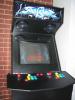
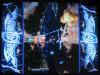
I love this new bezel feature! Looks awesome on my cab! Had to take a few snaps.