|



headkaze
-
Posts
5120 -
Joined
-
Last visited
-
Days Won
37
Content Type
Profiles
Forums
Events
Downloads
Store
Articles
Everything posted by headkaze
-
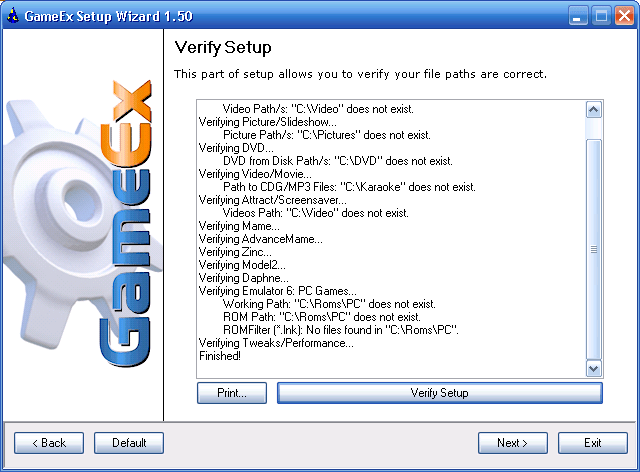
I'll drink to that, cheers I just thought I'd quickly explain what the new Verify Setup feature of the Setup Wizard is. The reason I added this option was because I decided to do a complete fresh install of GameEx on my cab and start from the beginning to fully test the new Setup Wizard. First thing I noticed that annoyed me the most was when I set a wrong path, or forgot a logo image or something like that, which would mean I would have to quit GameEx and go back to the Setup Wizard to fix it. This feature is about verifying your paths before you go back into GameEx. It will generate a report of all the problem paths that you can print out and then go back through the options and fix them. I hope some people find it useful
-
Yeah I just did an update to latest version (6.99) and still same issue with me. GameEx.ini has BezelVersion=2 under [internal] and there is a folder called BEZELV2 in the MEDIA dir. I'll post a log if need be.
-
Actually that config works okay without double quotes. I'm using it on my cab and my shortcuts have spaces in the names too.
-
Same thing happened, but this time when I tried 1942 I noticed it performed that exception error. So I'm going to update to 6.99 and see if that solves it.
-
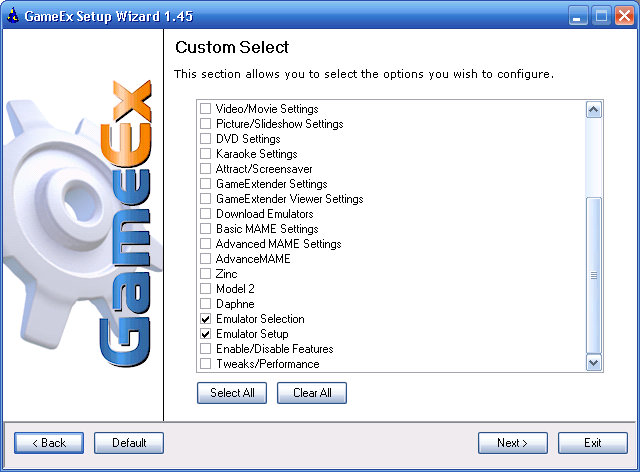
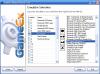
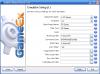
1. Run the Setup Wizard, choose "Custom" Wizard Mode, and then select "Emulator Selection" and "Emulator Setup". Click Next. 2. Copy the "PC Games (Shortcuts)" config over to the left. Click Next. 3. Change your Working Path and ROM Path to be the location of a folder contain the shortcuts (lnk's) to your games.
-
Tom: I did do a manual install of 6.98 and I have the same bezel issues as reported here.
-
There is already a config in GameEx for PC Games, all you have to do is import it using the Advanced Configuration or the "Emulator Selection" in the Setup Wizard.
-
I actually said yes to when GameEx detected a new version of Mame and did the update list thing, then I exited GameEx and turned on the Bezel feature went back into GameEx and tried 1942, but it went straight back to the game select screen. So I can confirm that there may be a problem with bezel feature.
-
Under "Play this game" there should be an option for some games to "View Controls" just above "Add to Favourites".
-
BTW If you only need to change a few key mappings you can permanently reprogram the EEPROM on the IPAC and it will stay that way even after power-off. Basically you need to have your PC keyboard in your IPAC's passthrough, run Notepad and press ctrl-alt-p and follow the instructions. You can read more about it at http://www.ultimarc.com/interact.html
-
I think it's very easy to have your IPAC programmed each time at the start of GameEx. Basically you run WinIPAC.exe with the ipc file as the first parameter. Say you've created an ipc file called custom.ipc with all your new button mappings. Set the following in Tweaks/Performance: Launch On Startup dont wait: C:\WinIPAC\WinIPAC.exe C:\WinIPAC\custom.ipc Although I havn't tried it myself, I'm pretty sure it's as easy as that. Also you can use the AlsoLaunch for each emulator if you want custom button mappings on a per emulator basis. If you do that don't forget to load the default ipc back using the LaunchAfter setting.
-
Thanks heaps Adultery. For now I've changed them like this, but I still might write a wrapper for Handy. Appreciate your feedback
-
I don't understand why your having trouble with AlsoLaunch and LaunchAfter fields. I use them all the time, and there is no problem with them.
-
http://www.autohotkey.it/
-
Yeah, that was just a guess, but judging by Nologic's post it's not an easy thing to do multiple keypresses in AutoIt. He's the AutoIt expert around here. My guess is it can only process one key using HotKeySet() which would mean it would get quite complicated to do a multiple key press to exit. Try a AutoHotKey script instead, you might need to do some reading on the AutoHotKey website. At a quick glance at the documentation on the AutoHotKey site you would need WinGetActiveTitle() to get the title of the currently active window and WinClose() to close the application. That way the script will close whatever application you are currently using.
-
Have you tried using the Setup Wizard or the Advanced Configuration? There are configs for both PT and VJ already there for you, you just have to import them and change the game/rom paths.
-
Try changing the following line in the script HotKeySet( '{ab}' , 'Escape' )
-
GameEx does not supply the ROMs for the emulators.
-
1. First you need to download and install AutoHotKey. 2. Create a text file called MapExitKey.ahk and write the following into the file: a & b::Send {Escape} Replace "a" and "b" with the keys you want as the combination keys for exit. You may need to do some reading here. 3. Compile the script using AutoHotKey. You do this by right clicking your MapExitKey.ahk file in explorer and select "Compile Script". It should create an exe file called MapExitKey.exe. 4. Copy MapExitKey.exe to your GameEx directory. 5. Run the GameEx Configuration program, and go to the "Tweaks/Performance" section and locate the "Launch on Startup dont wait" option and in it type "MapExitKey.exe" without the quotes. 6. Run GameEx and it should have those two keys mapped as the Escape key.
-
Use a program called AutoHotkey and map a multiple key press to escape. You write a script and compile it to an executable and then run it at the start of GameEx. The script would look something like this: a & b::Send {Escape} Pressing buttons a and b will send escape. Check out some more examples here
-
Have you tried AlsoLaunch instead of LaunchBefore?
-
Yeah I don't think Tom has implemented the custom layouts for the CP just yet.