


|



Tom Speirs
-
Posts
19655 -
Joined
-
Last visited
-
Days Won
1076
Content Type
Profiles
Forums
Events
Downloads
Store
Articles
Everything posted by Tom Speirs
-
Note: You can still hide your email address if you like.
-
Hi Toonces, I see the problem your talking about, well spotted. Thanks. I've fixed it, and it won't happen in the next release. Cheers.
-
Hi, It's not a bug I am aware of, and it works fine for me. GameEx now has a last MAME game item on the start page, this allows you to access the last game that was launched either by you or by attract mode. That should address your feature request. In addition, after attract mode fails, try to access and play this last game. If it works it may be a bug with attract mode, if not maybe something to do with your setup. Another way to test this is to select the Run Last Game shortcut from the GameEx Start menu Programs Group. Let me know. Thanks. Tom.
-
Make sure Debug is set to false. Also ensure the batch file runs ok outside of GameEx. I suspect there may be an error in it. Let me know. Thanks
-
You can do the same thing, but have to use .bat files instead of .lnk files. Here is a sample emulator config: [Emulator_6] Enabled=True STARTPAGENAME=PC Apps TITLETEXT=PC Apps StartPageLogo= ROMFilter=*.bat RomsInFolders=False RomPath=C:\lnks SnapPath= WorkingPath=C:\lnks MapKeys=False WaitBeforeKeys= SendKeys= ReplaceDash=True ReplaceUnder=True Capitals=True RemoveBrackets=True ShowDesktop=True Debug=False MAPFile= AlsoLaunch= Command=cmd.exe /c "[ROMPath]\[RomFile]" OLDatZip= On win 98/me you would use command.exe instead of cmd.exe In C:\lnks you would have batch files (text documents with the bat extension) For example: notepad.bat calclator.bat Here is how your .bat file might look (edit with notepad) C: CD "C:\killergame" killergame.exe The MapKeys setting won't work, as GameEx can't tell what the application exe file is. Hope this helps. Tom.
-
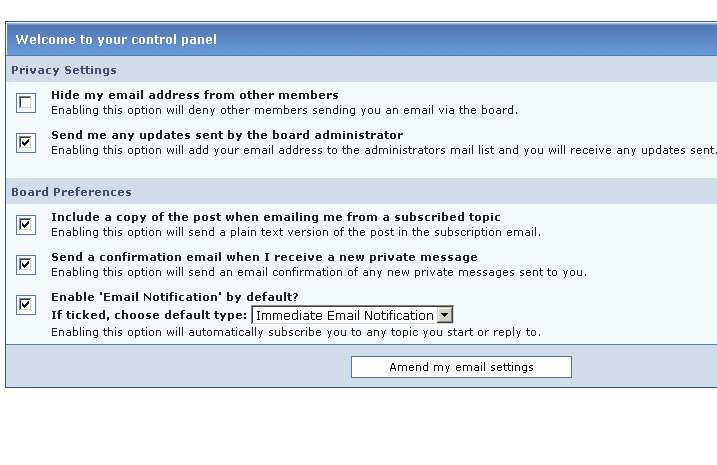
If you want to be notified by email for posts. Make sure the following setting are set (in the image). To access Click 'My Controls' Then 'Email Settings' (Under Options) Edit: You can still hide your email address if you like.
-
Hi, Thanks for your support. Glad you like it!
-
No, it's not possible currently, and I have no plans to change it. Thanks, Tom
-
Hi, I've addressed this before. partly. For the INI files, basically I think it would be unethical to do that because I am not the author of those files. I do try to include fairly recent versions with the install though. In regards to GameEx itself, bascially no to that as it's free software and I want people to visit my site before downloading, on the hope this will help pay for some of my costs. Thanks. Tom.
-
Hi, It does it on the fly, and adds the resoultion to the command line. You can modify the settings to not make it stretch if >256. It may conflict with existing ini files, so you may have to delete those first. Thanks, Tom.
-
Hi, I'll look into this when I have a chance.
-
I am not sure I understand, do you mean GameEx sorts them in alphebatical order each time? If so there is no way round this currently, and I don't plan to change it. If not please explain.
-
Which version of MAME are you using? Are you using the latest?
-
Post Language Translations, GameEx Plugins, News Feeds, Radio Stations, URL's and Feeds. As of GameEx 7.03 there is now a plugin system using MS .net. If you want to submit a plugin to the community feel free to upload it here. Add Reply and Post/Upload here. NOTE: This should be for replies with attachments only or URL's Addresses, and if you wish to comment on attachments or posts please create a NEW topic. Although this is not strictly enforced. ------------------------------------------------------------------------------------ Here is a small guide on the easiest way to update a language translation. Open C:\program files\GameEx\Config\GameEx.ini with notepad Keep that open then open C:\program files\GameEx\Config\Languages\[Language.ini] Replace Language.ini with the language your updating. Go back to the GameEx.ini in notepad. Do a Find for [Text] Highlight that entire section going up to the next section beginning with [. Make sure you dont select any of the next section, then delete the selected text. Now post the entire contents of [Language.ini] into the blank area in GameEx.ini making sure its not in overlapping another section. Then save GameEx.ini Go into the Config application, and select Language/Text. Make sure you select Custom Language at the top. Now update the text, you can also test this in GameEx. When the language translation is pefect, open up GameEx.ini find the [Text] section and select again, this time copy the selection and post the entire contents into the language.ini file, deleting the existing contents first. Now Go into the Config app, and select the language you just updated, and test with GameEx to see its working right. Final step is to email me or upload the updated language.ini, for inclusion into next version of gameex. If you get stuck or have any questions post here. Thanks, Tom ------------------------------------------------------------------------------------ GameEx Plugin Manager To run the GameEx Plugin Manager select Start->Programs->GameEx->Plugin Manager This is the program you use to enable and disable plugins, as well as configure them. To enable a plugin just double click it on the list so there is a tick next to it. To Configure a plugin hilight it then click the Configure button. GameEx Plugins are located at GameEx\PLUGINS Source code in C# and VB.NET for writing your own plugins is available at GameEx\PLUGINS To write your own plugins, you can download Microsoft C# 2005 Express Edition here If you need any help writing plugins, just post a message on these forums or for finding help coding in .NET find a suitable .NET coding forum. ------------------------------------------------------- Name: Speak Game Name Version: 0.1 Author: Tom Speirs Description: Speaks the name of games This plugin speaks the name of games when you select them. You can download more voices from below. Microsoft Mary, Mike and Sam 5.0 (68MB). To select the voice use the Plugin Manager to configure the plugin and select "Launch Speech Control Panel". ------------------------------------------------------- Name: Caller ID Version: 1.0 Author: Ben Baker Description: Displays Caller ID This plugin will pop up a message in GameEx notifying you of an incoming call. It has a database system which you can use to associate names with phone numbers, so you know who is calling. You need a Caller ID enabled modem for this plugin to work, and Caller ID enabled on your phone line. ------------------------------------------------------- Name: Exit GameEx Version: 1.0 Author: Ben Baker Description: Exit GameEx using Key/Joy Combo or Password This plugin allows you to exit GameEx using a password or combination of keys using either a joypad or keyboard. To configure the key/joy password or combo you need to select Configure in the Plugin Manager. Combo Exit The Combo Exit feature means you can hold a combination of keys or joypad buttons to exit GameEx. You need to select which Keyboard keys or Joypad buttons in the listbox. To test it works, you can hold the them down in the configuration program to test if they work. Password Exit The Password Exit feature allows you to set a password using keyboard input or joypad buttons. For example you can set a password as "gameexexit" on the keyboard or "89889" on the joypad. You must press the "Record" button to record a new password.
-
Upload Emulator configurations here, along with new emulator databases or updates to existing emulator databases. Most databases ane emulator configs should upload fine if zipped. I recommend you upload your emulator configs as zipped ini files now, because GameEx now supports importing emulator configs. Also upload any Wrappers or Loaders here, they get lost in the forum, so please post them here. Add Reply and Upload here. NOTE: This should be for replies with attachments only (or pasted text), and if you wish to comment on attachments please create a NEW topic.
-
User Submitted Media and Themes. Add Reply and Upload here. NOTE: This should be for replies with attachments or links to files only. If you wish to comment on attachments please create a NEW topic. IMPORTANT: The forums won't allow upload of files greater than 2MB. Most theme packages will be above this. To get round the problem you will have to email the files to this address: [email protected] This address will take emails up to 20MB at any time. It is possible to send me files bigger than this but you will need to contact me in a PM or via email.
-
Welcome to your new Invision Power Board! This is simply a test message confirming that the installation was successful. You can remove this message, topic, forum or even category at any time.