


|

Search the Community
Showing results for tags 'mikedaspike'.
-
 If you download the program and you like it, please leave a review with 5 stars rate at the download page ! After 2 1/2 months of programming, @scutters and I are proud to present to you PinballX Database Manger We created a program to manage your PinballX database files and your media files on a easy way. The download can be found in the download section : There is a manual attached in the setup as well. Thanks for the testers @simbamame, @BrandonLaw, @greynurse and @joyrider3774 GreyNurse give us the idea, to get information populate data from Visual Pinball tables (Author,Version and Rom) Very special thanks to Joyrider3774 who did a great job to find all kind of bugs during Beta testing. Thanks @Tom Speirs for letting us use PinballX logo's and for his approval to use FTP support. And off course for the great program PinballX he created with still a lot of support on it. Also that Tom added our custom fields to be filters in PinbalLX (PBX version 4.54 or higher) Thanks to Dux Retro who created a Google sheet with info for us that is used since version 1.9 ! Thanks to our translators @PcTeknic (Spanish), IJsblokje (German) and Rute O.(Portuguese) for helping translate 600+ words/sentences And a big thank to @scutters. Don't forget to mention him Without him, this program wasn't what it is now. Enjoy !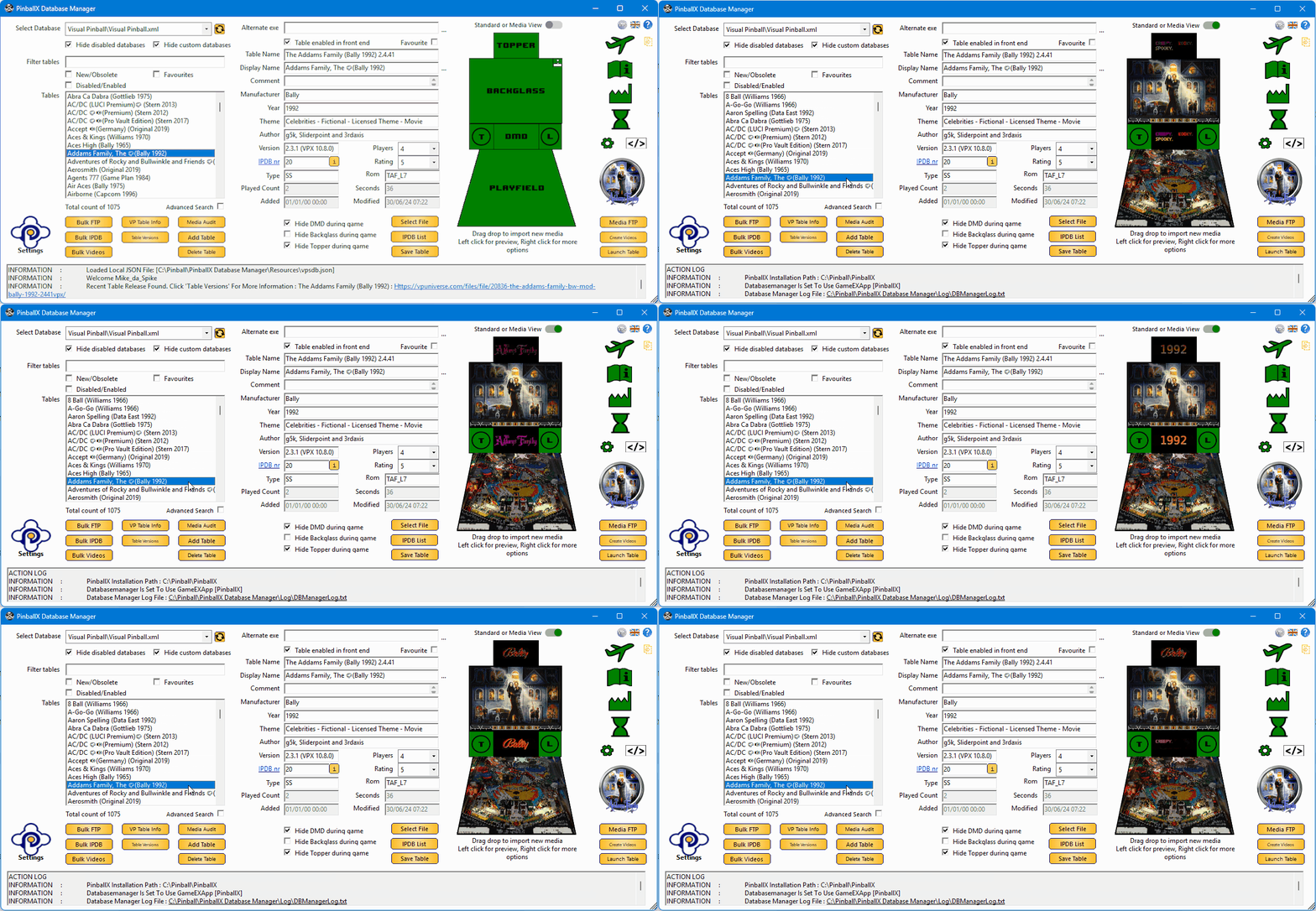
- 418 replies
-
- 11
-

-

-
- mikedaspike
- scutters
- (and 1 more)
-
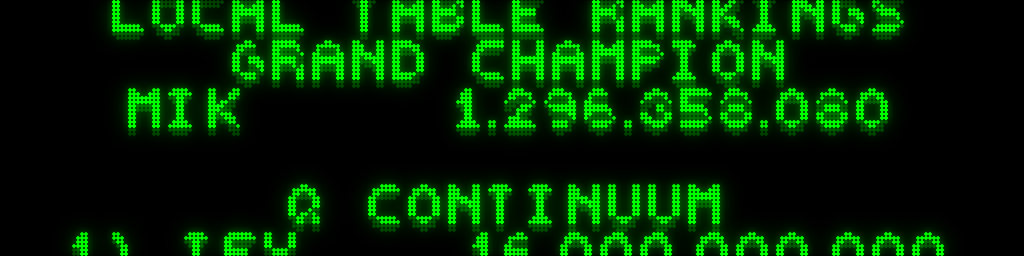
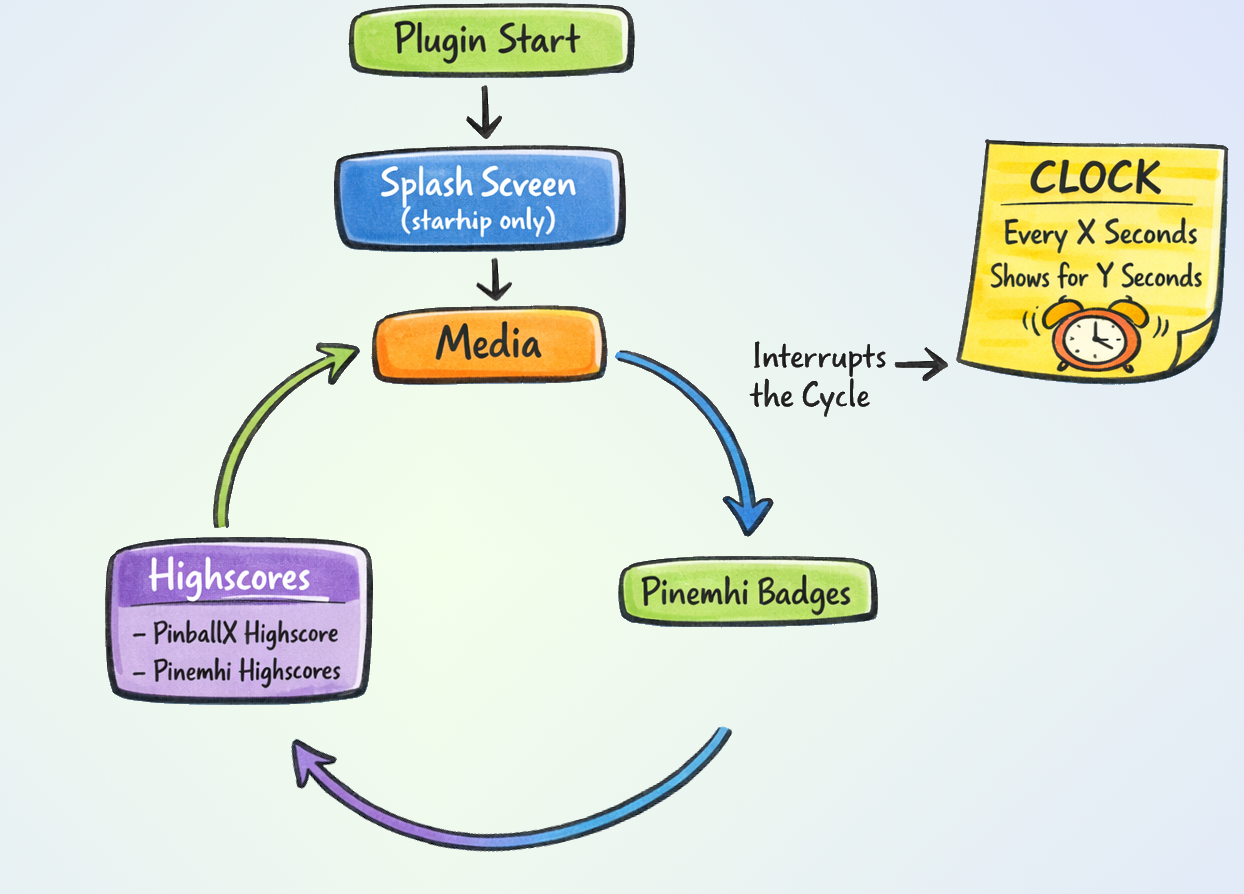
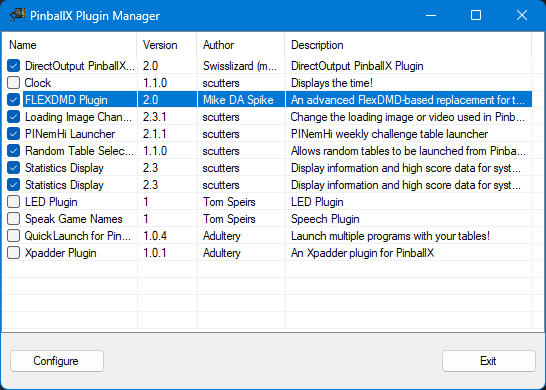
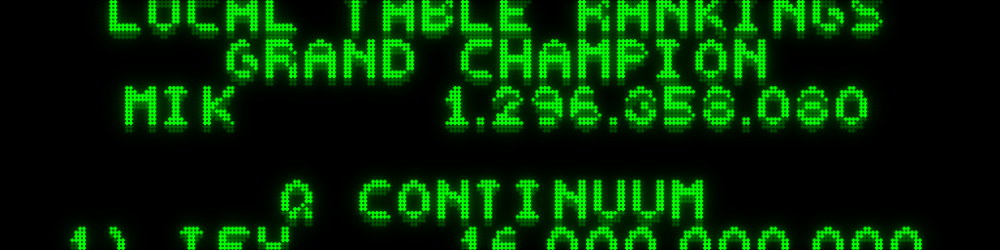
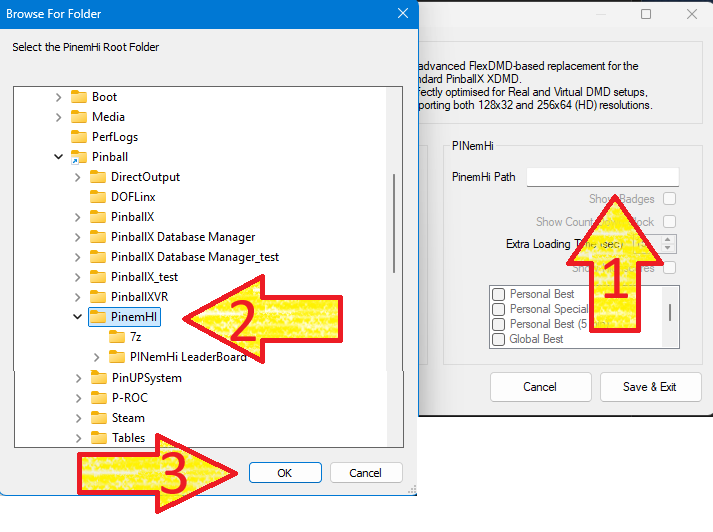
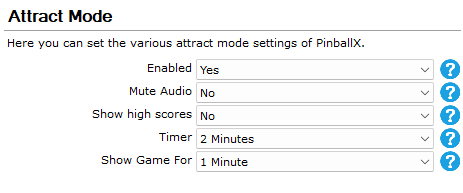
This project originally started to help users who were experiencing issues with the standard XDMD implementation. However, I wanted to push the boundaries of what could be displayed on a real DMD. That vision led to the creation of FlexDMD V2.0, a highly optimized plugin designed for both Virtual and Real DMD setups. Why upgrade from the built-in DMD player? FlexDMD V2.0 gives you complete control over your DMD attract mode. To see exactly what makes this plugin special, let's take a look at the configuration options. Installation Download the attached .zip file. Extract and place the DLL into your PinballX\Plugins folder. Open PluginManager.exe. You should now see FlexDMD V2.0 in your list. Highlight the plugin and click Configure. Core Features & Media Control When you open the configuration, you'll see a range of new options. By default, the plugin behaves similarly to the standard PinballX DMD player: it plays media from your Real DMD Color Videos, Real DMD Videos, or DMD Videos /Images folders, followed by the table's highest score. However, FlexDMD V2.0 adds powerful customization: Loop Control: Choose exactly how many times a video loops. If you are using static pictures, you can define exactly how long they stay on screen. Custom Text Colors: Don't want the default orange? Use the built-in color picker to match your cabinet's theme. HD Panel Support & Custom Clock As of version 1.3, the plugin fully supports 256x64 HD resolutions. This is incredibly useful for Virtual DMD users and those running ZeDMD HD panels. You can also turn your DMD into a customizable clock : Check Show Clock to enable it. Interval: Set the minimum time before the clock appears. (Note: The plugin will always finish its current media or high score animation before cutting to the clock). Duration: Choose how long the clock stays on screen. Format: Toggle between 12-hour and 24-hour formats. Left :128x32 DMD with 24hour format, Right : 256x64 (useHd is checked) with 12 hours format Advanced PINemHi Integration If you are a PINemHi user, this plugin unlocks a whole new layer of features. Simply point the plugin to your PINemHi folder using the PinemHi Path text box to enable these options. Show Badges: Proud of your achievements? This option cycles through the badges you've earned for the current table. It looks especially stunning on a 256x64 HD panel. (Please note: Badge images are exclusive to HD panels and will not be displayed on standard 128x32 screens). Show High Scores: Enable this to pull and display detailed PINemHi scores. You can use the checklist below to select exactly which score categories you want to see. Weekly Challenge Countdown For the competitive players, there is a dedicated Show Count Down feature designed to work seamlessly with @scutters PinballX Pinemhi Challenge Table Launcher plugin. When you launch the weekly 5-minute challenge table, this feature triggers a live 5-minute countdown on your DMD. Because VPX takes a moment to load, you can add "Extra Seconds" in the configuration to ensure the 5-minute timer aligns perfectly with the actual start of the game. It acts as a perfect visual helper so you know exactly when PINemHi will terminate the VPX session. (Note for Real USB/COM DMD users: The plugin locks the display during the countdown, so standard VPinMAME information will not be shown until the challenge table ends). How the Carousel Works (And a Quick Warning) FlexDMD V2.0 displays all your selected features in a smooth, continuous loop (a carousel). Here is the order of operations: Splash Screen: Briefly shows whether you are running the Standard or HD rendering mode. Media Display: Your DMD videos or images. PINemHi Badges (If enabled). PBX High Scores. PINemHi High Scores (If enabled). The Clock will interrupt this sequence based on your interval settings. Here's a visual overview : Important Tip: Be mindful of how many PINemHi high score categories you enable. If your PinballX "Attract Mode" interval is set too short, PinballX will move on to the next table before the DMD has enough time to display all the information you've selected! Below is the dll and the code will be available on github as well https://github.com/MikedaSpike/PinballX-Plugin-FLEXDMD PBXFlexDMD.zip







- 1 reply
-
- 3
-
-
- mikedaspike
- dmd
- (and 1 more)
-
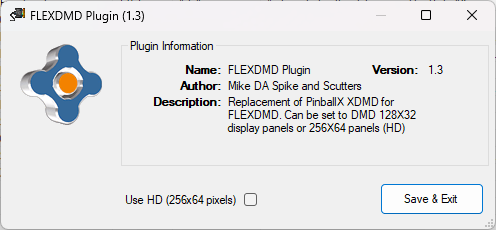
This plugin is created as work around for issues with the XDMD API that is used within PinballX. See : https://forums.gameex.com/forums/topic/27873-realdmd-still-in-use-by-pinballx-after-table-is-launched-when-attract-mode-was-active/ In short : I have a real DMD (PinDMDv3) and after PinballX running attract mode (screensaver mode) in PinballX and launches a table that uses the DMD (via Pinmame, or DMDext) the display is still in use and nothing is showed during game. Exiting the game will sometimes release the DMD again and next launch of table will sometimes works fine. Or I need to relaunch PinballX. Side effect is that exiting PinballX could take up minutes to close the XDMD dll. This plugin will use FLEXDMD (as this is part of Visual Pinball now) and will show the videos from your realDMD directory. Pre-requests for this plugin : Working Flex DMD 1.9 or higher (https://github.com/vbousquet/flexdmd/actions For non public version, you need to login to Github) Turn off XDMD to initialize the real DMD during start This can be accomplished, by editing the PinDMD.ini in your PinballX directory (if not exists create the file) add/modify the next line : comport=COM7 (the comport bust be a non existing comport of your real DMD) Copy from the attached zip file the PBXFlexDMD.dll to your PinballX\Plugin directory Starts from your PinballX folder (in your start menu) the option Plugins (or from your PinballX directory PluginManager.exe) From the Plugins program, enable FlexDMD Plugin by checking the checkbox and click exit (nothing to configure) Launch PinballX If FlexDMD is configured correctly you will see on your DMD display : When PinballX is started , you will see the corresponding video for your table. The videos are searched in the following order : Extension in priority: MP4 AVI WMV GIF PNG Name : Filename (tablename) Table description - system - \Media\Videos\No Real DMD Color.avi This means it will first search for the exact filename (tablename) with extension .MP4. If not found, it will search for the AVI, still not found for a WMV file. Not matched, it will do the same on table description (with the extension). Still no match, it will check if there is a file - system -.MP4 (avi and WMV) Still no match , it will display the default \Media\Videos\No Real DMD Color.avi The same as PinballX does, the plugin will look in your XML to the HideDMD. If this is set to false, it will display the current video during game play. As I could not get a good scrolling with FlexDMD, the highscores check in settings.exe will be ignored by now. In the plugin directory a log file will be created : PBXFlexDMDDisplay.txt The log file will show all the events that are happening. If you got any question, requests or need support, just ask and I'm willing to help. Most important thing: A big thanks to @scutters who is the 'PinballX Plugin Wizard' and the overal 'FLEXDMD master'. I used parts of his statistics plugin for this plugin, as I was too lazy to do the initialize of FLEXDMD. Thanks buddy ! 2024-11-02 : Updated to v1.3 - added 256x64 support Need to be enabled via PLuginManager.exe PBXFlexDMD.zip



-
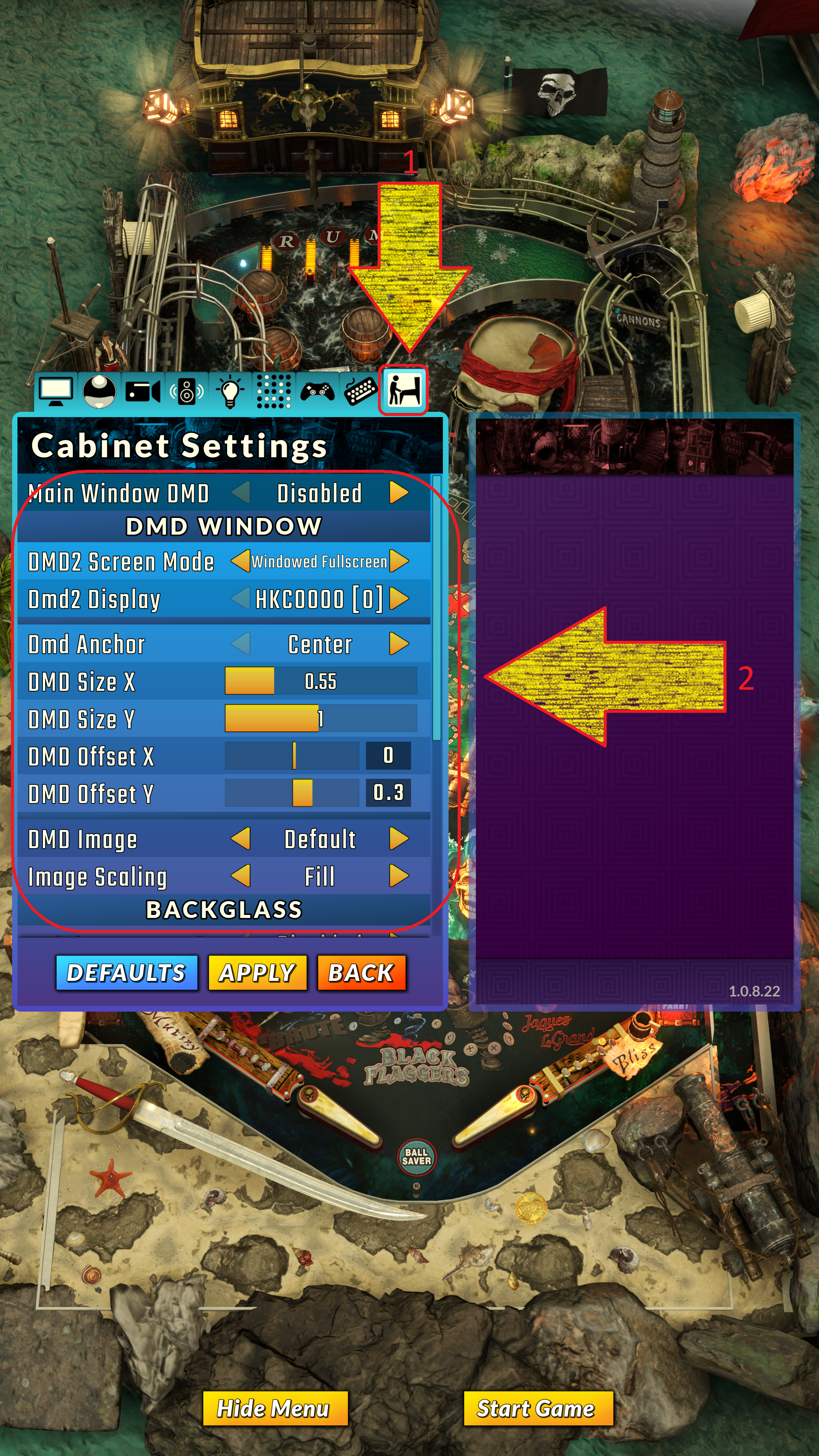
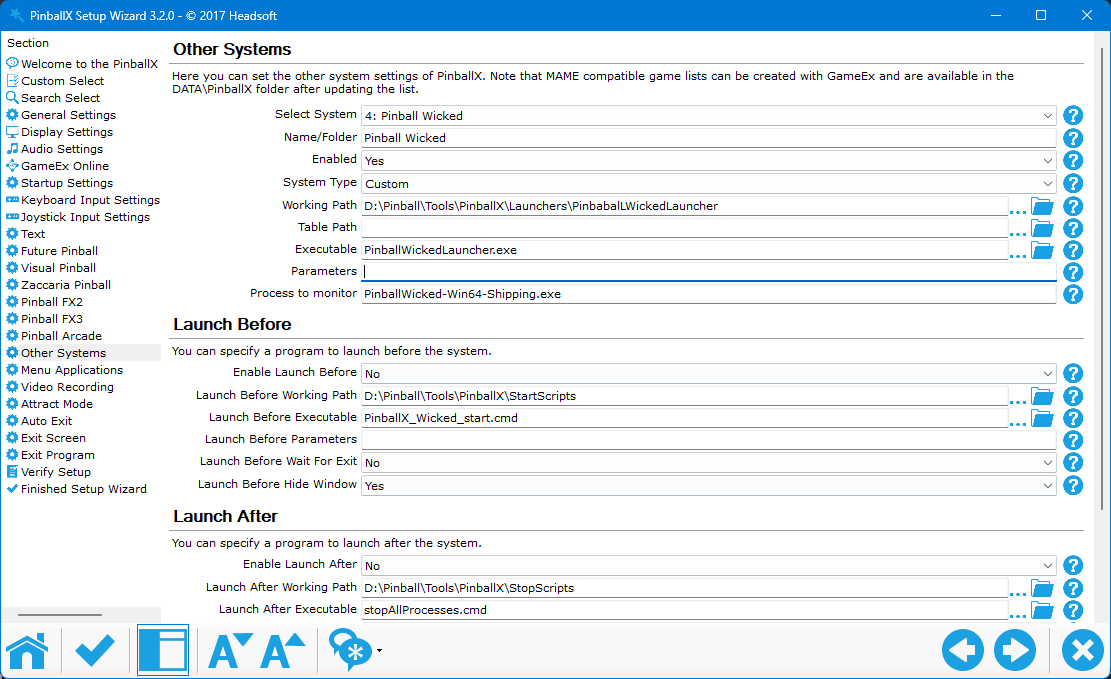
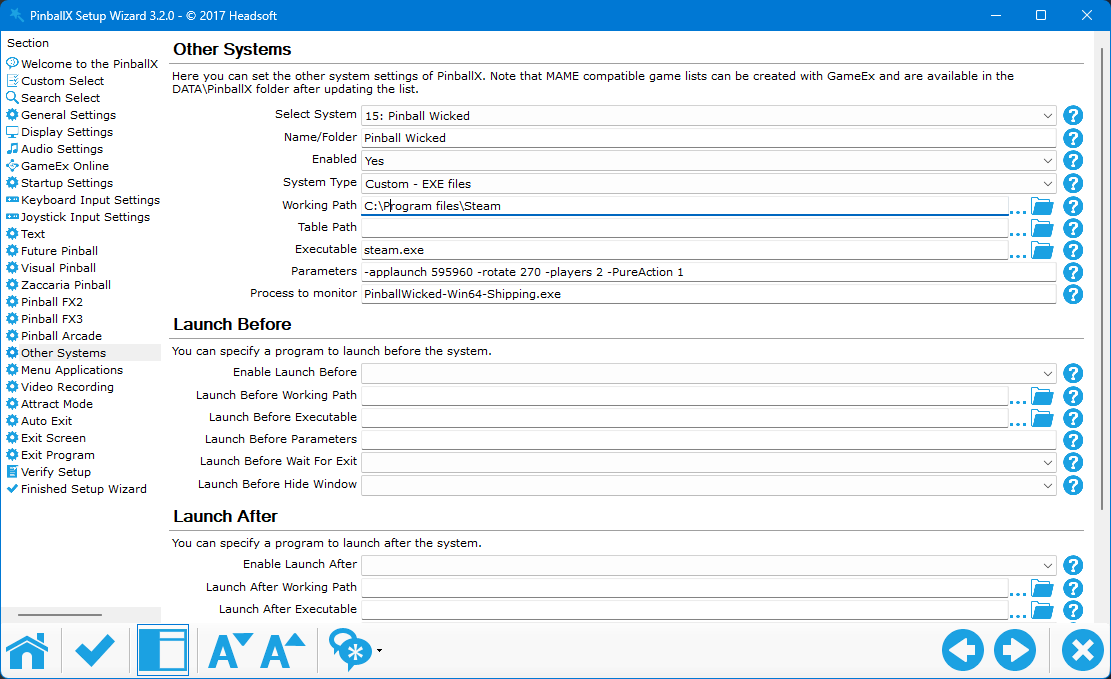
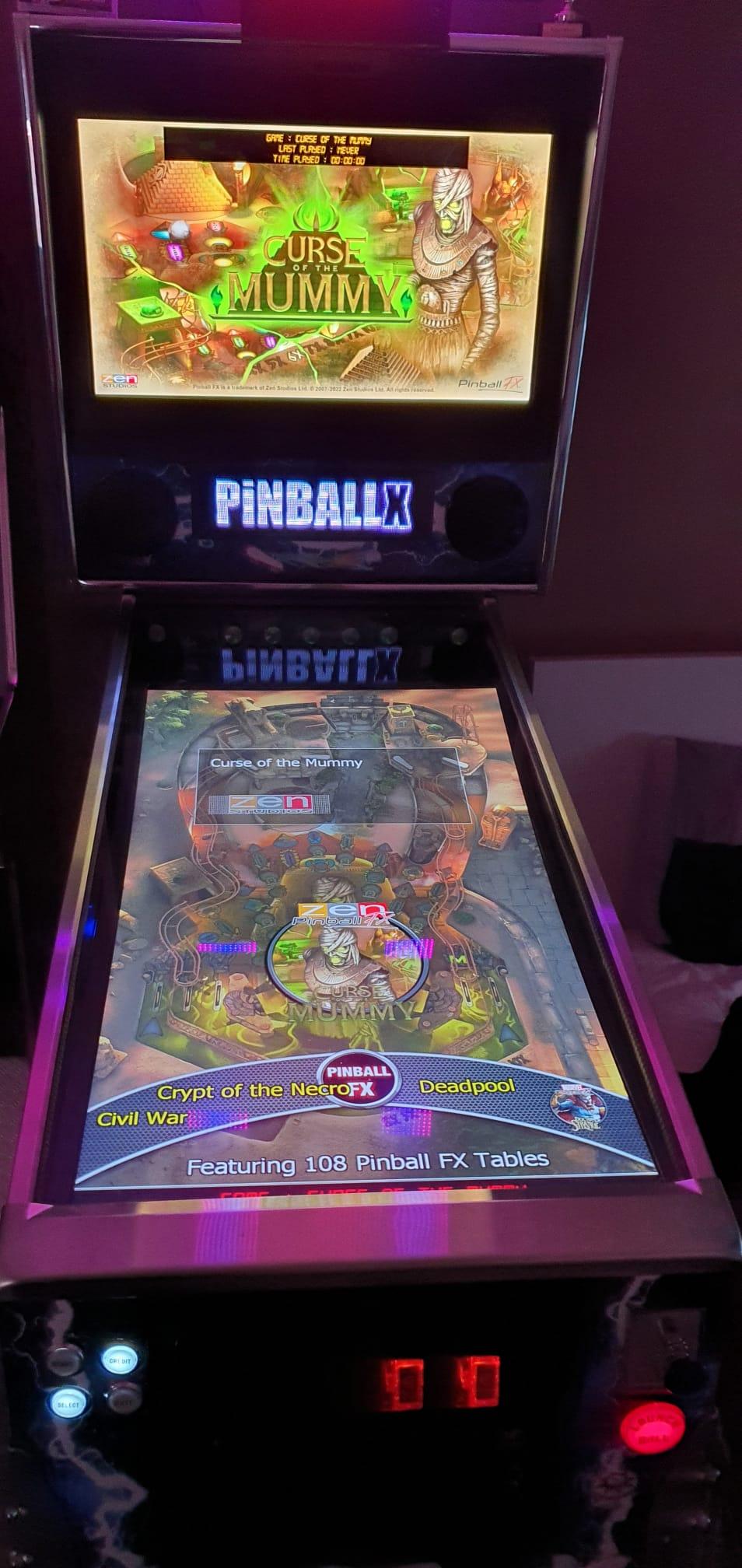
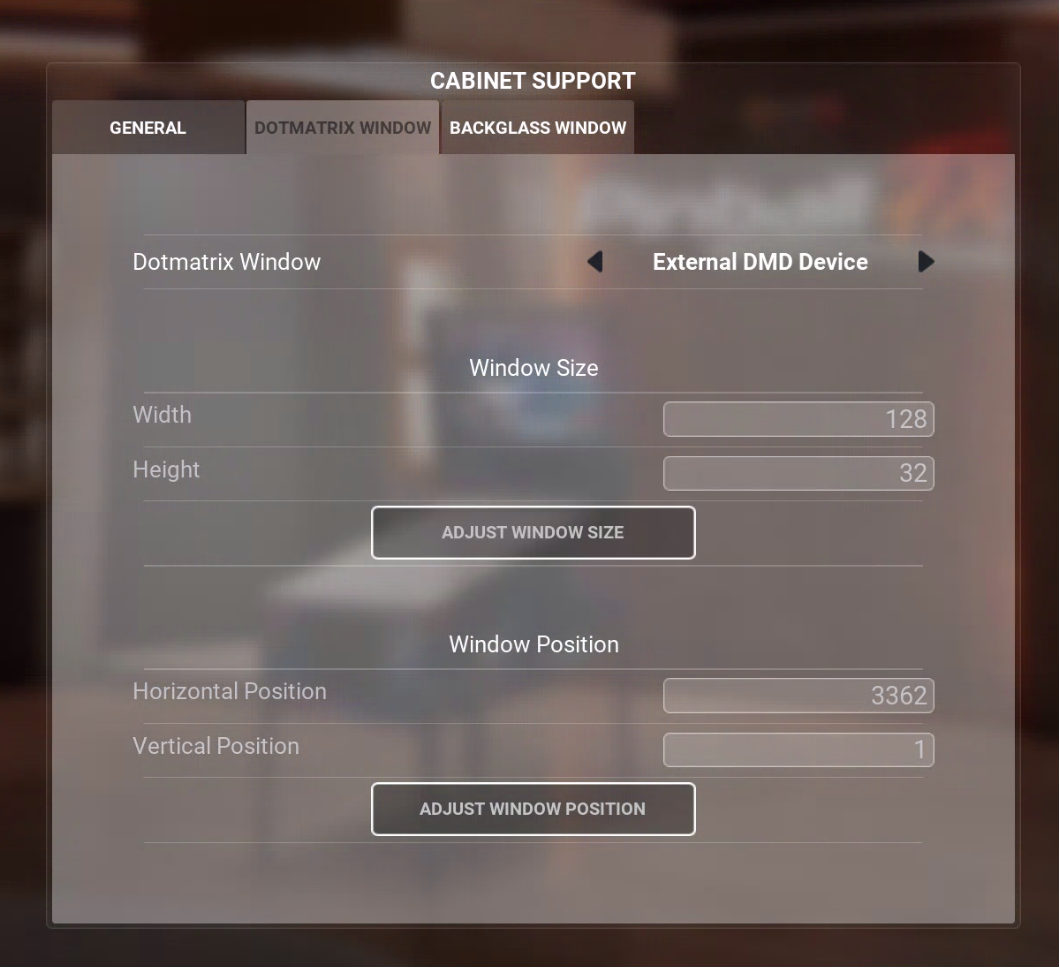
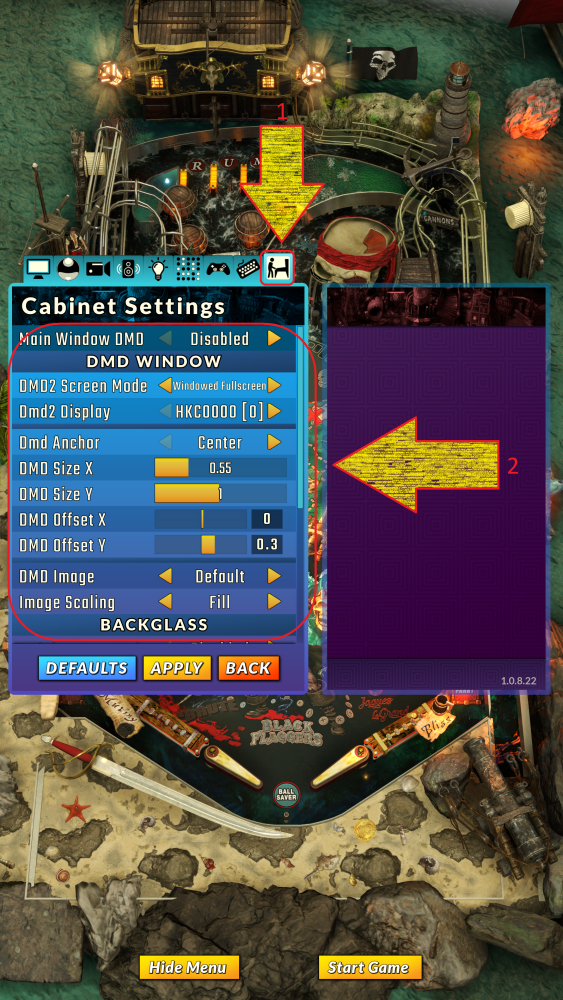
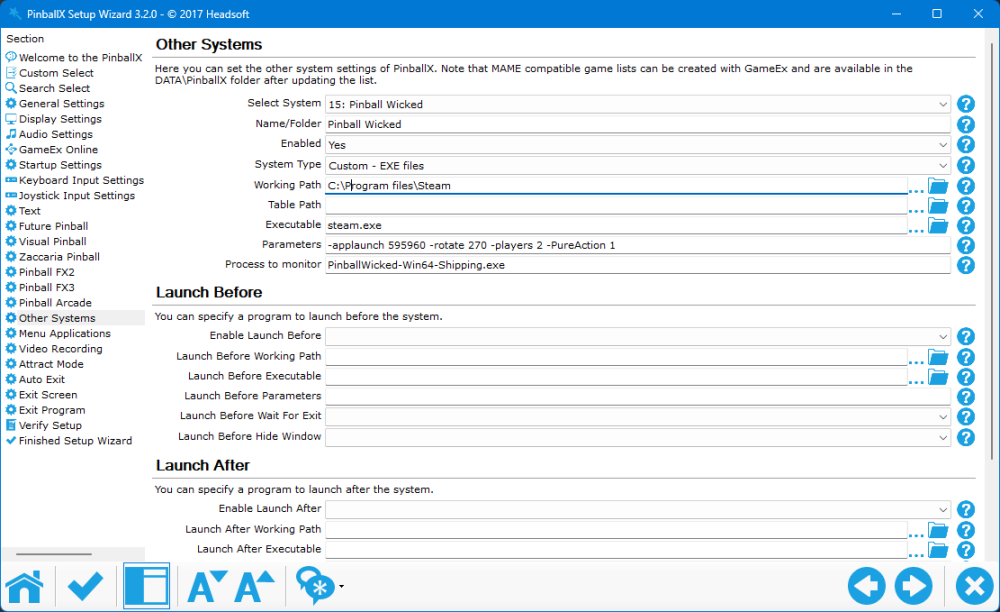
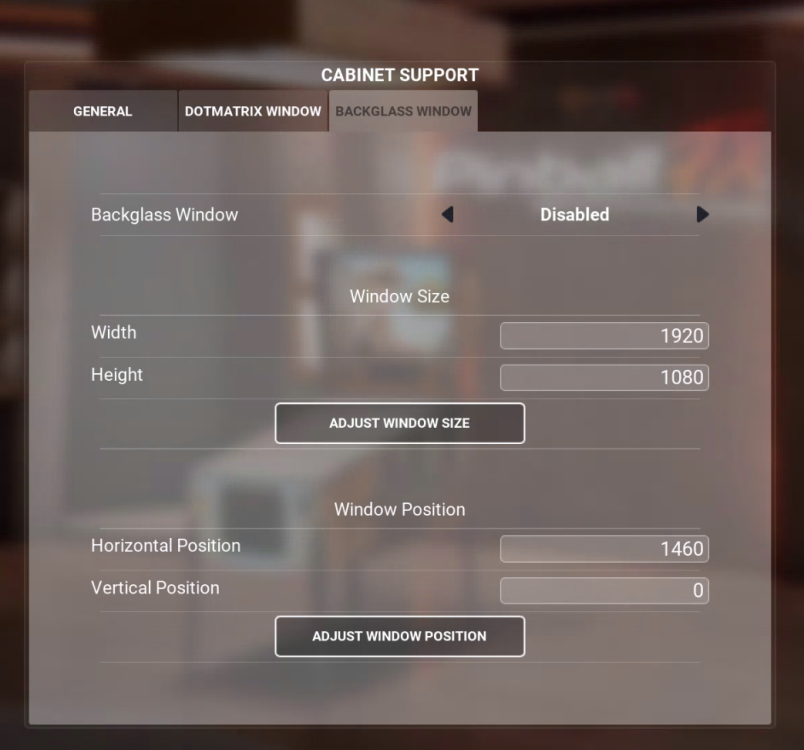
I've just become aware that Pinball Wicked has officially launched, and I'm pleased to note that it includes cabinet support, eliminating the need for AHK. The next information was sourced directly from the Steam platform. Cabinet / Multi-Display / Launch Options FAQ Screen Rotation and Multi Display Support The rotation is available via the normal windows display settings - display orientation. Or via command line (see ingame help - command line options). In the steam client game menu - General - Launch options - advanced, e.g. -rotate90 The portrait game main display can get irritated when the Backglass window or DMD window overlap the game main display, and the game main display shouldn't be the same as Backglass or DMD display. In short every screen/window needs its own physical display. The Screen Mode "Fullscreen" is only supported with DirectX 12 when in portrait orientation. Windowed Fullscreen always works fine. The (rotated) game main display must be the windows main display. Cabinet Command Line / Launch Options Open your Steam Library Right click the game's title and select Properties. On the General tab you'll find Launch Options section. Enter the launch options you wish to apply (be sure to separate each code with a space). Close the game's Properties window and launch the game. If you are using an external launcher please start the game via the steam.exe like this: "C:\Program Files\Steam\steam.exe" -applaunch 595960 -rotate 90 -players 2 Screen Rotation Rotate the main display by 90° / to portrait: -rotate 90 Rotate display with index 1 by 270° / to portrait (flipped): -rotate1 270 Rotate display with index 0 by 90° / to portrait: -rotate0 270 Zero based index, does not necessarily match the windows display settings order. Players Players 1-4, e.g.: -Players 3 Style - Pure Action Pure (Popups): -PureAction 0 Action (Characters): -PureAction 1 Clear Window Settings This option will disable all but the main window: -nowindows If your rig doesn't meet the current minimum system requirements If the default settings are too demanding you can activate the Performance+ overall quality with the command line: -OverallQuality=1 Overall Quality Levels Performance+ - for IGPU Performance Medium - better IGPU and budget GPU High Wicked - mid range GPU Ultra Wicked Launch Options The default option (topmost) will start the game with DirectX 12 and fallback to 11 if it is not supported. The default option does not change any previously saved setting. The other launch options provide overrides to start the game in a specific setting, which is useful if the game won't start otherwise or only with extremely low fps. DirectX 11 / 12 The game launches now with DirectX 12 per default. The command line option -dx11 allows to explicitly start with DirectX 11 ------------------------------------------------------------------------------ It now also have a cabinet setup in game, which can move the DMD finally to another screen : And his has a Backglass as well : Within PinballX, you can use @joyrider3774 his 'FX 3' launcher You must make sure you have path and startparams set to Steam : [SETTINGS] PATH=C:\Program Files\steam\steam.exe STARTPARAMS=-applaunch 595960 And the buttons like this : [BUTTON_ONE] TEXT=1 Player (Pure) ENABLED=1 PARAM=-Players 1 -PureAction 0 [BUTTON_TWO] TEXT=2 Players (Pure) ENABLED=1 PARAM=-Players 2 -PureAction 0 [BUTTON_THREE] TEXT=3 Players (Pure) ENABLED=1 PARAM=-Players 3 -PureAction 0 [BUTTON_FOUR] TEXT=4 Players (Pure) ENABLED=1 PARAM=-Players 4 -PureAction 0 [BUTTON_FIVE] TEXT=1 Player (Action) ENABLED=1 PARAM=-Players 1 -PureAction 1 [BUTTON_SIX] TEXT=2 Players (Action) ENABLED=1 PARAM=-Players 2 -PureAction 1 [BUTTON_SEVEN] TEXT=3 Players (Action) ENABLED=1 PARAM=-Players 3 -PureAction 1 [BUTTON_EIGHT] TEXT=4 Players (Action) ENABLED=1 PARAM=-Players 4 -PureAction 1 And within PinballX you can settup to this launcher, like this : Please note that I renamed the launcher .exe file and placed it in a different path, using the 64-bit version. I’m not sure if the 32-bit version requires a separate process to monitor. You can also have a direct launch (without the launcher) from Pinball X: So for example if you always want to launch a 2 player action game : For those with a realDMD, the best approach is to set the Pinball Wicked DMD off-screen and use Freezy’s DMDext to mirror the content via a startup batch file. Be sure to set the position as X-start, Y-start, X-size, and Y-size. In my case, I moved the DMD to a non-playfield area (a working desktop, not part of the cabinet). With all of this, Pinball Wicked will launch with the correct user and game type settings. Once in the menu, just press start to begin the game. I hope it all makes sense. dmdext.exe mirror --source=screen --position=5 3 459 118 --no-virtual -d pindmdv3


-
Hi all, I’ve put together a cleaned and updated XML file for Zaccaria Pinball, based on the naming structure originally compiled by @joyrider3774. His excellent work laid the foundation (he really need to explain how he get all the correct table names ) I’ve simply tried to ensure consistency across all 168 tables, including the POSTAL packs and newer Magic Pixel releases. Each pinball table in the XML includes a type field, which traditionally reflects the hardware generation of the original machine. In most cases, this is either: EM – Electro-mechanical: Tables from the 1970s with mechanical scoring reels, bells, and relays. SS – Solid-state: Later Zaccaria machines from the 1980s with digital displays and electronic sound boards. However, since Magic Pixel has introduced multiple digital reinterpretations and original creations, we’ve expanded the type field to better reflect the style or version of each table. This helps distinguish between physical recreations, stylized variants, and fantasy-themed originals. Here’s the full breakdown: type Meaning Description EM Electro-mechanical Original 1970s Zaccaria tables with mechanical scoring and chimes. SS Solid-state 1980s Zaccaria tables with electronic scoring and sound. RM Remake Faithful digital recreations of original Zaccaria tables. RT Retro Stylized retro versions with simplified visuals or gameplay. DX Deluxe Enhanced editions with modern graphics, lighting, and effects. AW Adventure/Wizard Original Magic Pixel fantasy tables, not based on real machines. The goal is to provide a reliable base for anyone integrating Zaccaria tables into their own frontend, launcher, or tooling. Original thread by @AndyMcDandy: guide zaccaria finally has direct table launch Steam guide reference by @joyrider3774: Steam Zaccaria Guide Feel free to use, adapt, or suggest improvements. I’ll keep it updated as needed. Download file : Zaccaria Pinball.xml
- 18 replies
-
- 3
-
-
- mikedaspike
- xml
- (and 2 more)
-

Version 26.06.29.0
8703 downloads
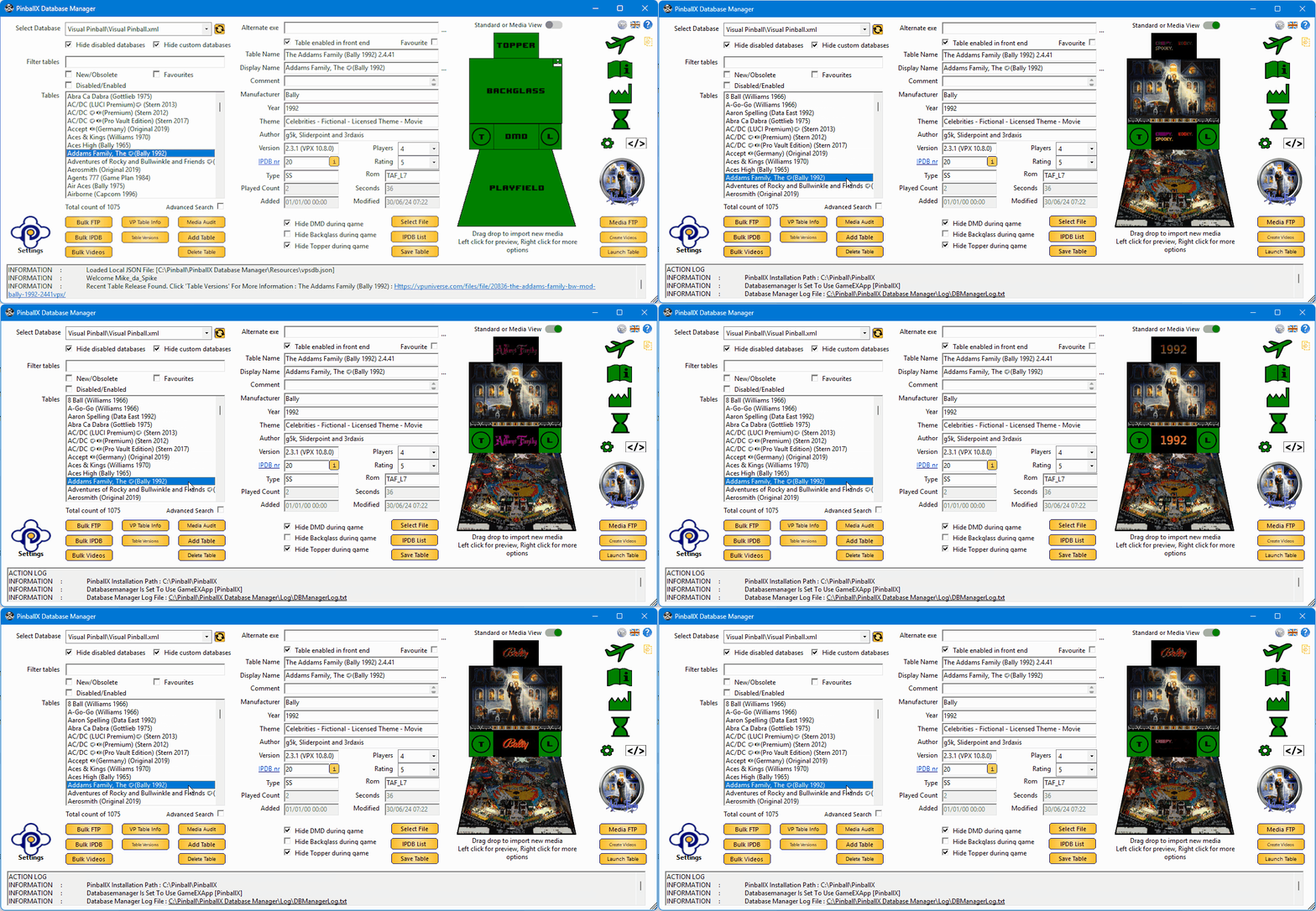
Please write a review and rate 1-5 stars on the bottom of this page! Also check the support topic for any help or comments. Scutters and Mike Da Spike are proud to present "Database manager for PBX" We built this program to make it easier for ourselves to update/add tables in PBX. Beforehand, please make a copy of your database directory (and maybe your media folder too)! We are not responsible that anything goes wrong. (but it is proofed that we don't wreck any database files or media files ) What is DBM ? Are you ready to take your PinballX experience to the next level? Look no further than DBM—the ultimate Swiss Army knife for PinballX enthusiasts! Whether you’re a seasoned player or a newbie, DBM has got your back. From customization options to essential features, it’s all packed into this handy tool. So, what are you waiting for? Dive in and discover the magic of DBM! Features: - Resizable multilanguage interface - Easy filtering of tables and systems - Easy to use drag and drop for updating media - Media preview on right mouse click - Delete media with one click - Media Audit to check for missing or unused media - Loading media support if de-randomiser plugin is used (2*) - Uses updated IPDB data and adds Original tables (source sheet by Dux Retro) - Adds custom fields for extra information (1*) - Online media import from GameEx or Mega link - Bulk functions to download GameEx media, update IPDB entries and for video creation. - Populate data from Visual Pinball tables (Author, Version and Rom) - Auto delete old playfield videos when creating bulk videos (Visual Pinball only) - POV & VBS import (Visual Pinball only) - Drag and drop for new/modified VP/FP Table files - Zen Pinball FX3 auto populate tables when using Steam (all tables) - Compatible with some other GameEx applications as well - Embedded recording that can capture Visual Pinball GL, Future Pinball, and every pinball game we tested. - Record media in PNG and MP4, including parallel recording and audio recording. (1*) If you use custom fields and you use Gamemanager, the XML will be overwrite by Gamemanger and you will lose the custom entries ! (2*) See : Prerequisite: Installation of PinballX/PInballX Legacy Editon/Touch Play FFMPEG.exe in Installation folder for Creating videos Windows Media player for showing media Microsoft .NET 8. (download is available at the download button as well) The following NUGet are used to build Databasemanger - Mega API Client for downloading on Mega (https://github.com/gpailler/MegaApiClient) - JSON framework for .NET (https://www.newtonsoft.com/json) - Costura add in for Fody (https://github.com/Fody/Costura) - Fluent FTP (https://github.com/robinrodricks/FluentFTP) - Resource.Embedder (https://www.nuget.org/packages/Resource.Embedder.Core) - Mediarecorderlib (https://github.com/sskodje/ScreenRecorderLib) External Source : - Visual Pinball Spreadsheet by Dux Retro and Fraesh , see https://virtualpinballspreadsheet.github.io/ Please use the following thread for questions/remarks/issues Note : The installer and program are not signed, this can give a popup in windows like this : Click on Yes to install the program if you see the following screen click on more info and select "Run Away" -
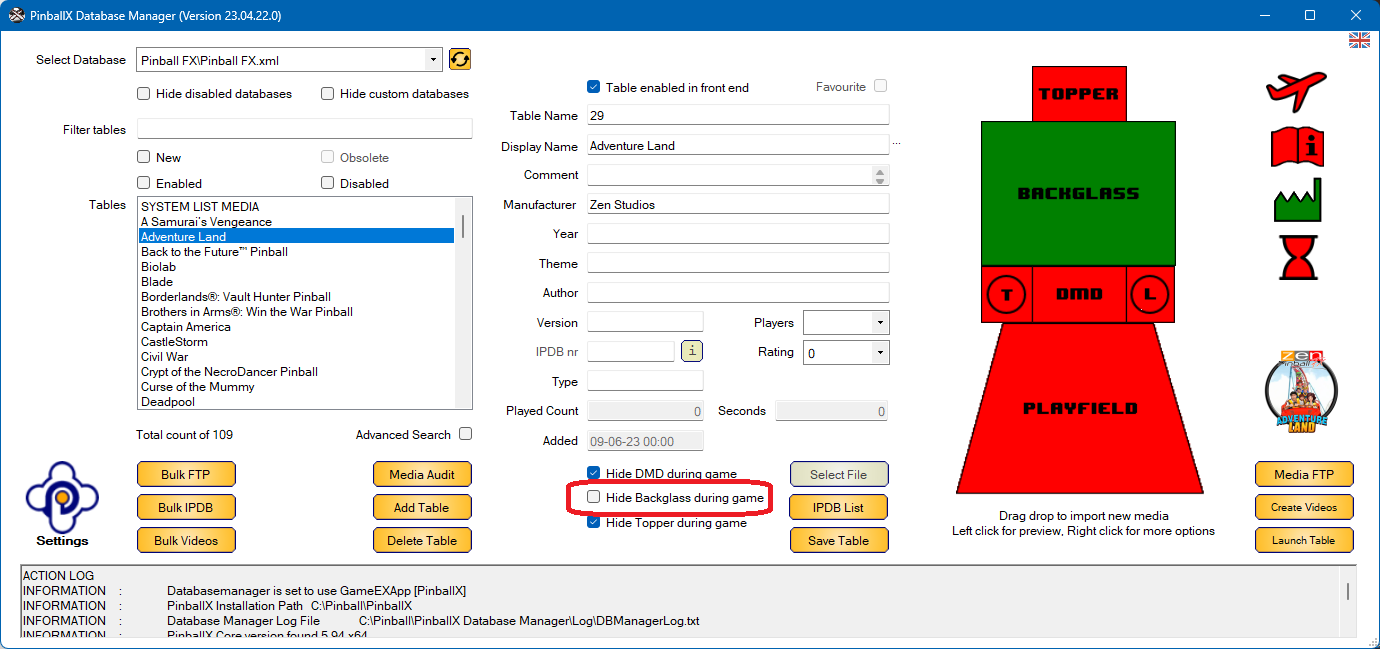
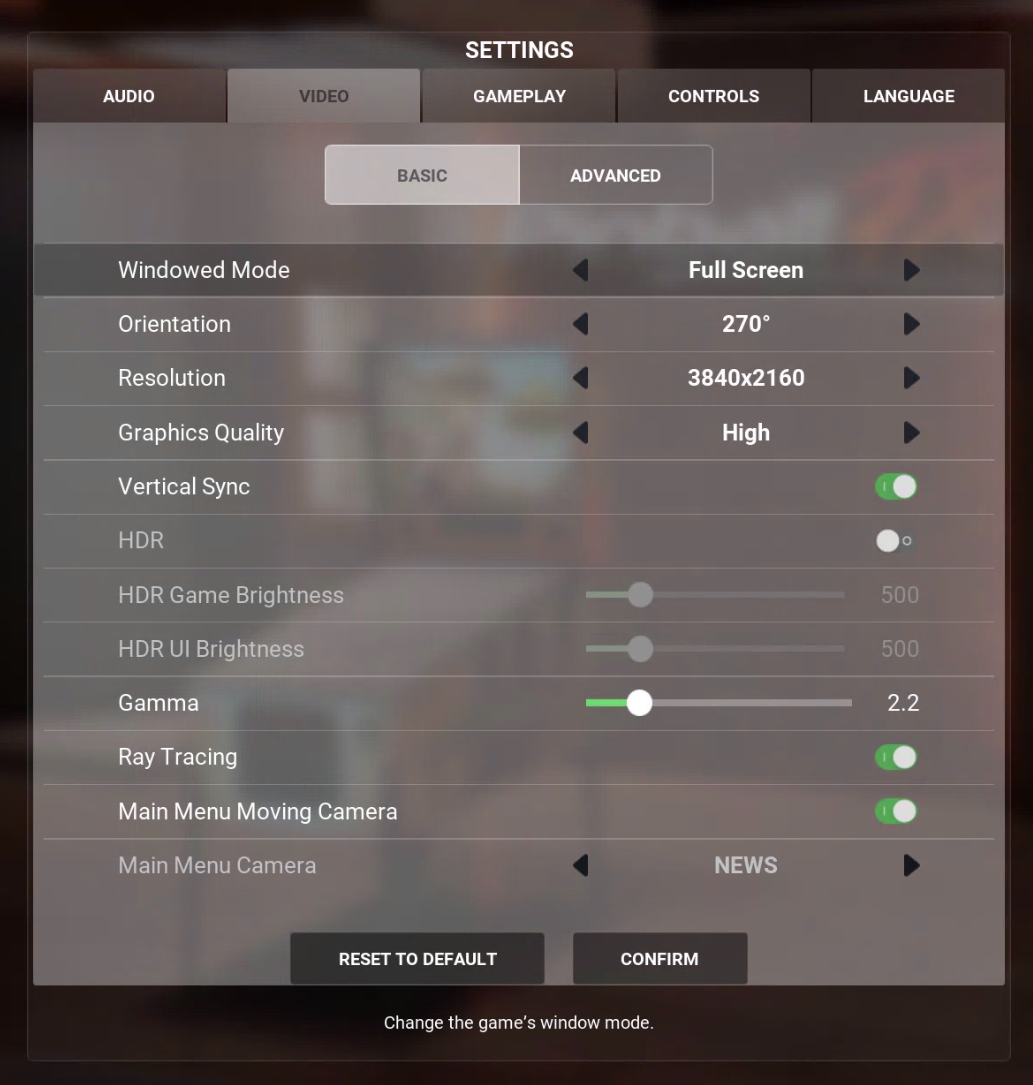
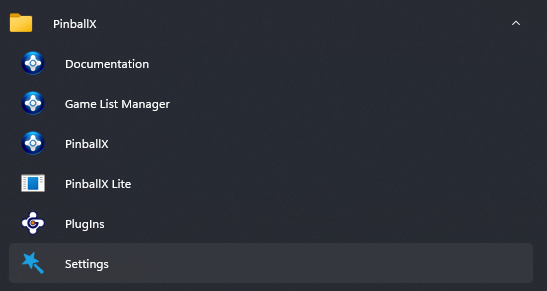
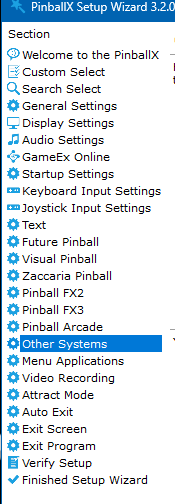
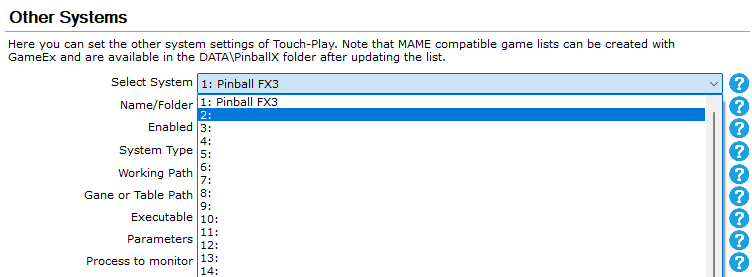
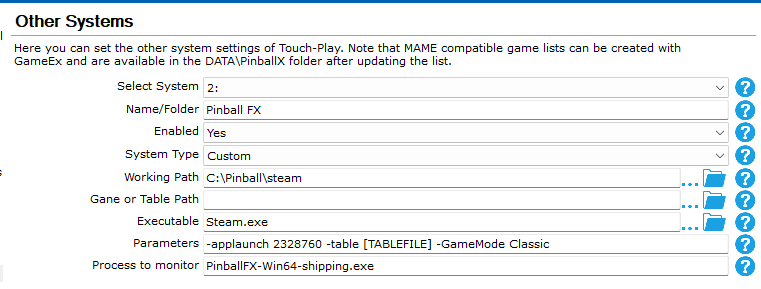
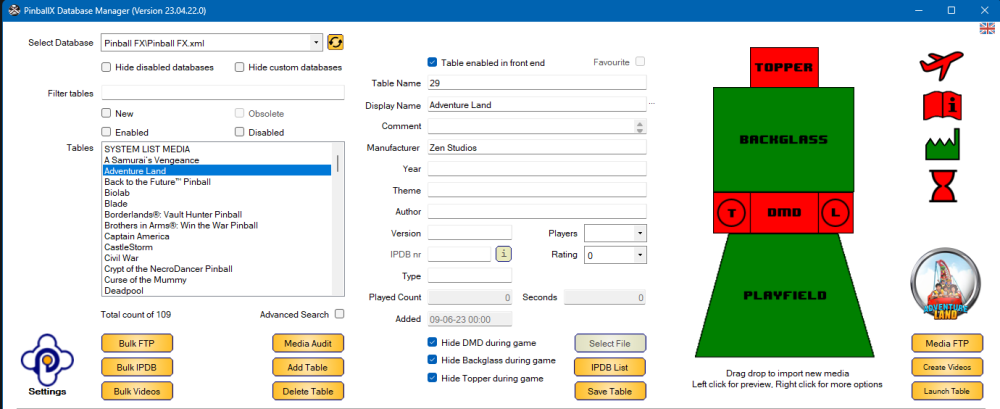
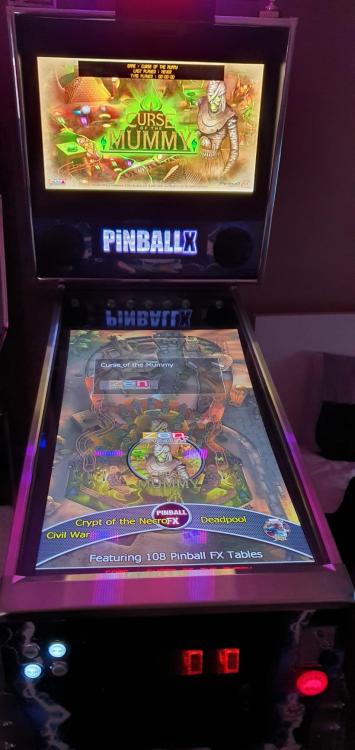
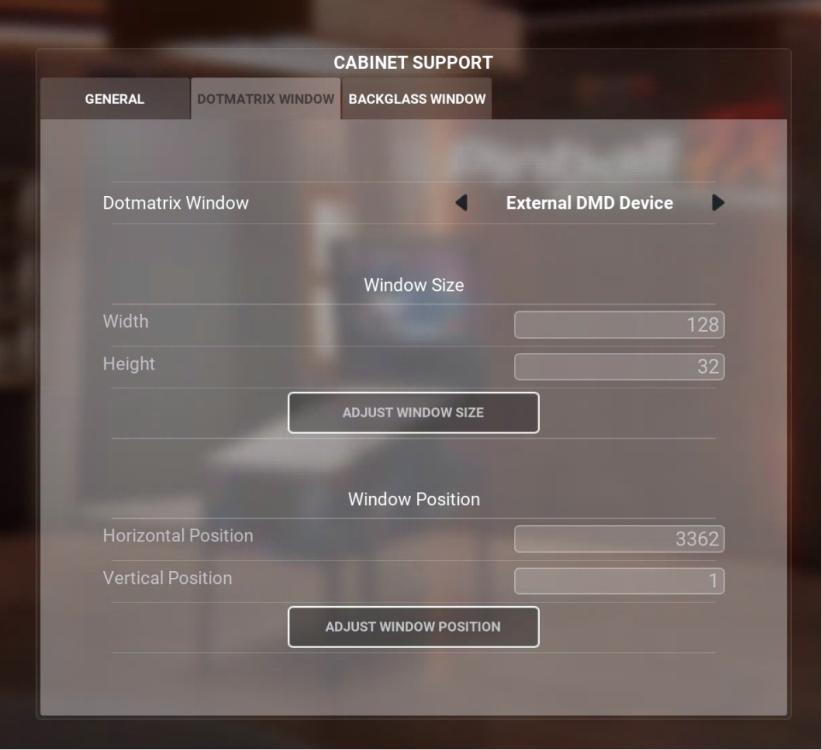
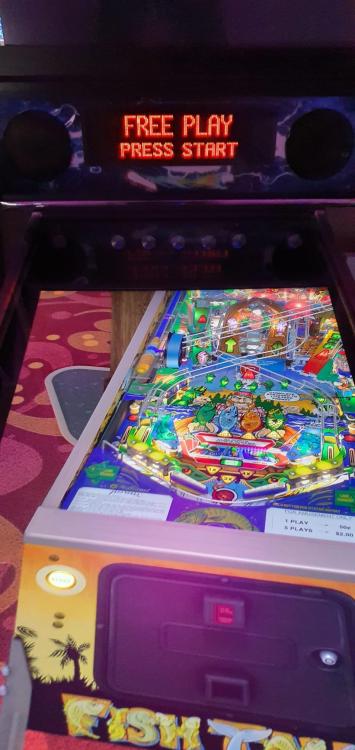
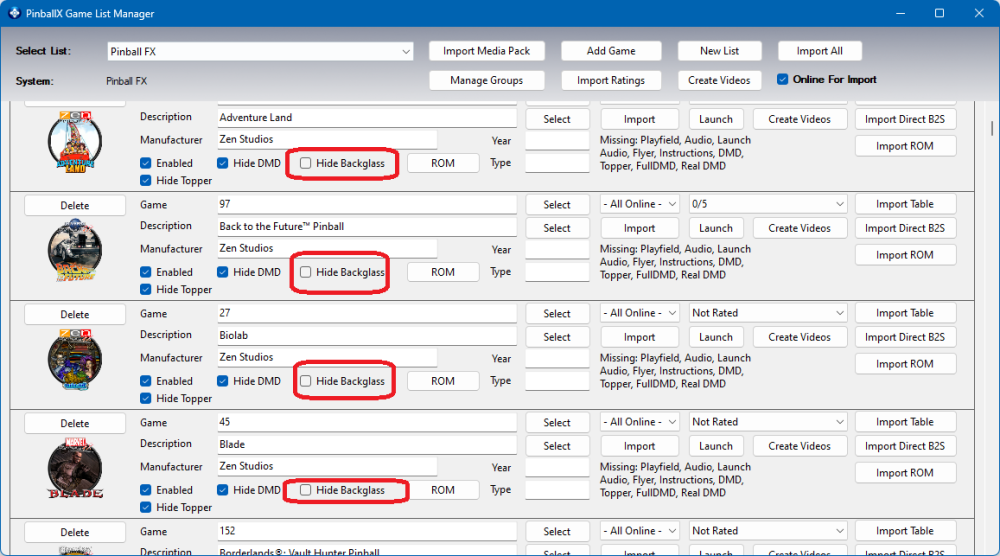
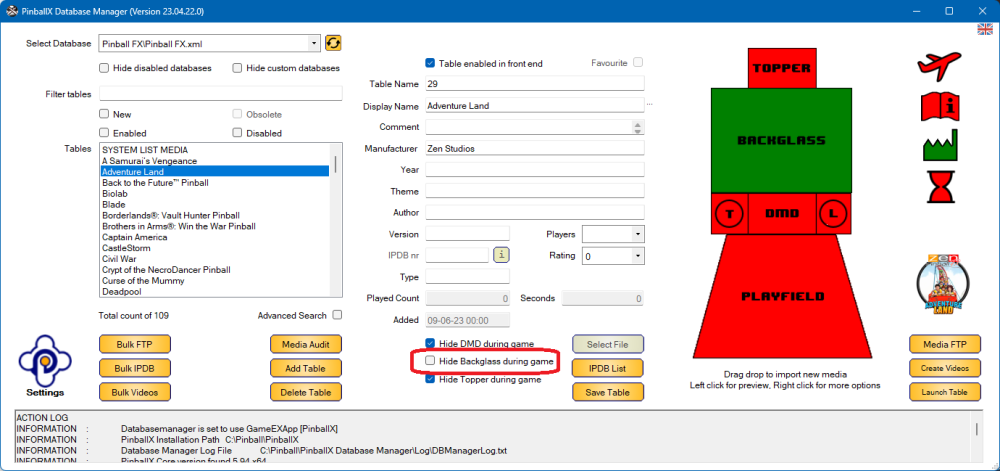
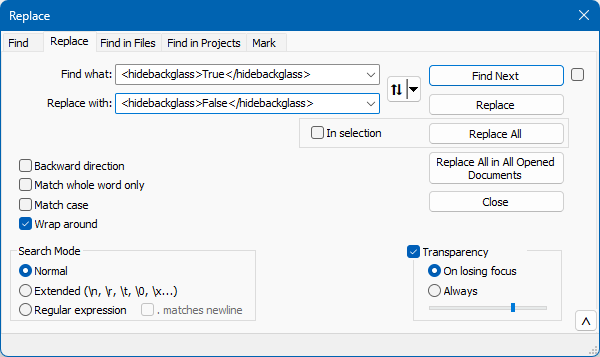
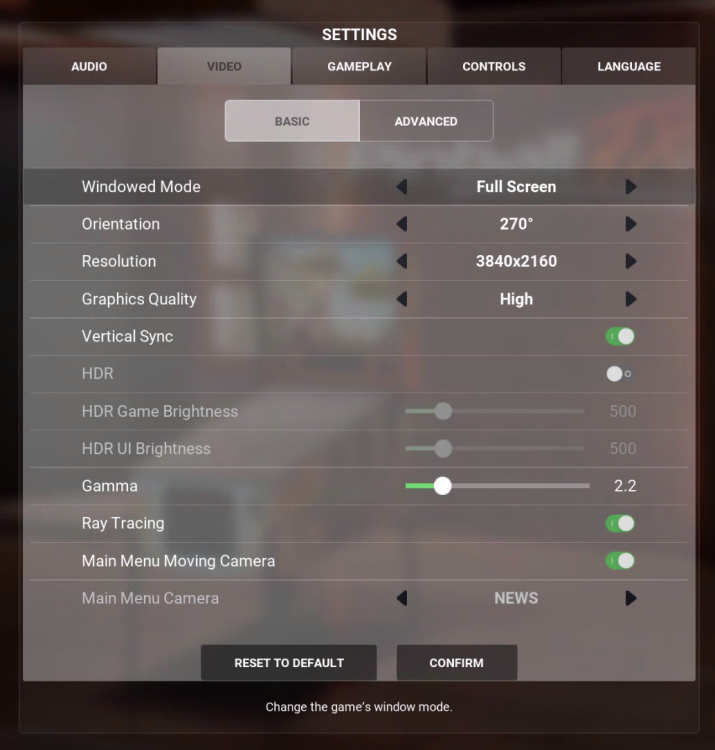
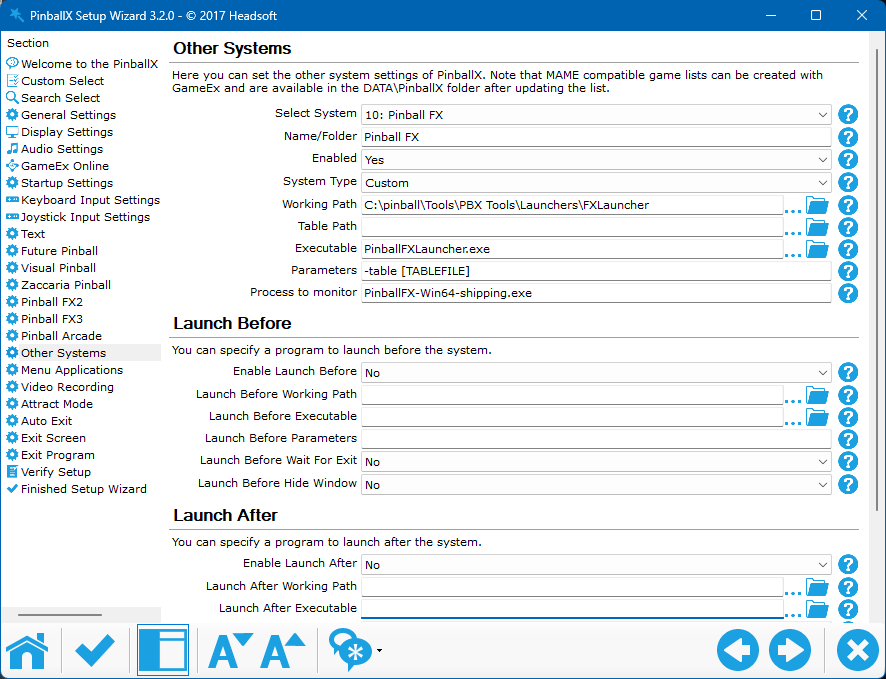
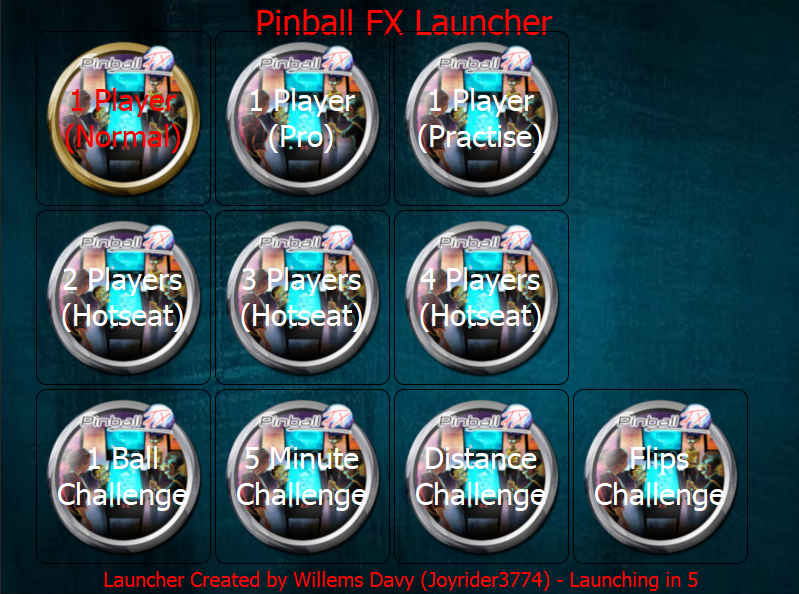
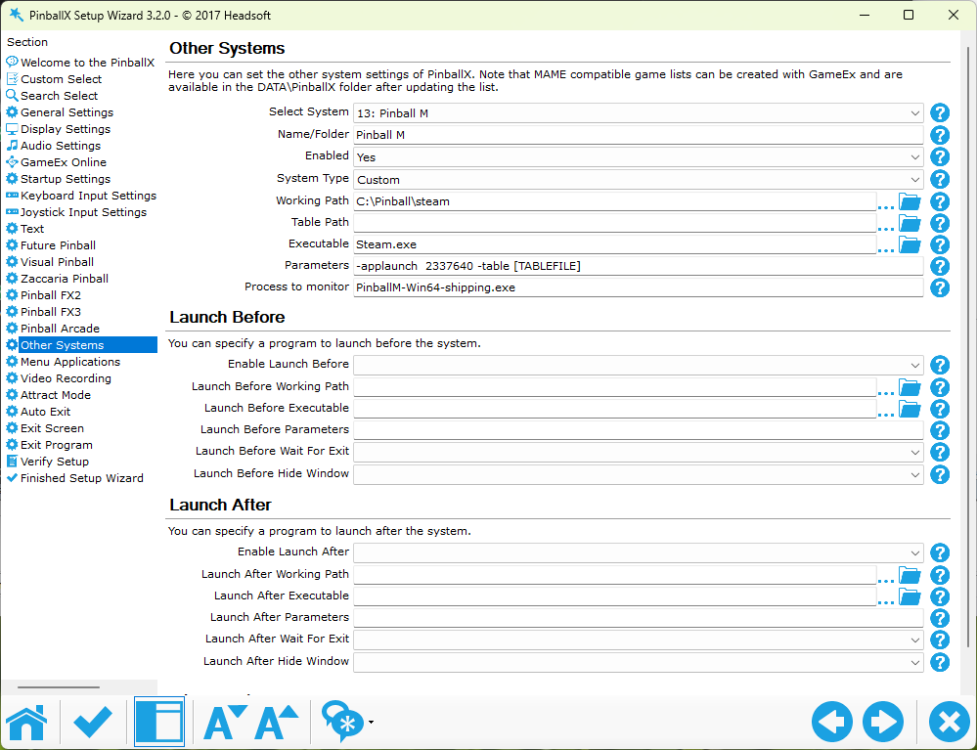
Finally Zen studio added direct table launch to his latest Pinball FX . This guide will make it easy to setup FX direct table launch from your PinballX installation (without using @joyrider3774 his awesome table launcher file). If you didn't have a FX setup system in PinballX, open PinballX settings (otherwise skipp this part): Go to 'Other Systems' Select the first free slot to add a new system : Create a new system with the following settings: name/Folder : Pinball FX Enabled : Yes System Type: Custom Working Path: C:\Pinball\steam Table Path: Executable: Steam.exe Parameters: -applaunch 2328760 -table [TABLEFILE] -GameMode Classic Process to monitor: PinballFX-Win64-shipping.exe (Where working path is the path of your steam directory) if you play PinballFX in cabinet mode and PinballX is started in landscape mode, you need to rotate your screen within Pinball FX to rotate 270 degrees : Now that we have a system setup, we need a database file file that has all correct entries in it. Attached is a Pinball FX.xml file that was created on the 9th of June, with the tables till that that. Place this file in your PinballX\Databases\Pinball FX folder Now you can launch Game Manager or Database manager to add @joyrider3774 his media he created This result in something like this : If you found all the media, you can launch PinballX and launch Pinball FX with Direct table launch : If you have a real DMD, don't forget to change the DMD option within the cabinet settings for FX (set External DMD): @freezy did a great job with Zen studios to have his dmddevice integrated in this softwrae. When setting this setting, it works directly for me : It should be possible to use the altcolor, but didn't get that (yet) to work) I got Freezy to work with Colored VNI and pall, buit I needed to update my DMDdevice64.dll in my vpinmame\dmdext direectory (not sure why it looked at that See freezy/dmd-extensions: A toolbox for virtual pinball dot matrix displays. (github.com) for altcolor directory names here's a small demo, launch a table directly from PinballX EDIT : Because I already have all the backglass images in PinballX, I disabled the Backglass images within Pinball FX To show the backglass from PinballX during game play, you can uncheck the "Hide Backkglass" in game manager : Or via Database Manger, uncheck "Hide Backglass during game" As this is time consuming, you can also open the PinballFX.XML file and replace <hidebackglass>True</hidebackglass> for <hidebackglass>False</hidebackglass> Don't forget to save the database file ! SETUP CABINET BUTTONS: a small other thing . I use X360CE for 'translating' my Pinscape buttons (and plunger) to an Xbox 360 controller. it is free and working. I still use an older 3.x version, as this doesn't need to run constantly (and causing double key presses) The only thing I needed to do is to copy the following 2 files to the following steam directory : ..\Steam\steamapps\common\Pinball FX\PinballFX\Binaries\Win64 x360ce.ini xinput1_3.dll (64 bit version !) The X360CE.ini is my default ini file, I use for all my steam apps, but be aware you need xinput1_3.dll 64 bit 9and not the 32 bit as you maybe use for other games! FX Launcher To setup a direct table launch, for differrent modes or multiplayer, I modified @joyrider3774 his PinballX launcher, to use for FX The files are in FXLauncher.zip Install instructions : extract the files from the zip to your harddrive Modify PinballFXLauncher.ini where needed (Steam path, keys and button settings). See https://github.com/joyrider3774/PinballX_Launcher_app for all settings Update PinballX system : and enjoy ! Edit : If you want to setup Pinball M , you can use this tutorial as well, but just use the following for your custom system : For Pinball M : name/Folder : Pinball M Enabled : Yes System Type: Custom Working Path: C:\Pinball\steam Table Path: Executable: Steam.exe Parameters: -applaunch 2337640 -table [TABLEFILE] Process to monitor: PinballM-Win64-shipping.exe (Where working path is the path of your steam directory) Pinball FX.xml FXLauncher.zip Pinball M.xml Pinball FX.xml Pinball FX_128Tables.xml
-
If PinballX crashes and you lose your mouse pointer, the best approach is to attempt relaunching PinballX and then close it properly. To accomplish this using only your keyboard, proceed with the following three steps. Step 1: Open search bar Press the Windows Key Step 2: Launch PinballX Type 'PinballX' (without the quotes) and press enter Step 3: Close PinballX Press ALT-F4 to close PinballX sucessfully If PinballX is still crashing, or your mouse pointer does not appear after PinballX has closed successfully, the next steps will guide you on how to restore your mouse pointer using only the keyboard. Step 1: Open Settings Press Windows Key + I to open the Settings menu. Step 2: Navigate to Devices Use the Tab key to move through the options until “Devices” is highlighted (bluetooth and devices in Windows 11). Press Enter to select it. Step 3: Go to Mouse Settings Use the Tab key again to navigate through the options on the left side until “Mouse” is highlighted. Press Enter to open the Mouse settings. Step 4: Change the Mouse Pointer Use the Tab key to navigate to “Additional mouse options” and press Enter. In the Mouse Properties window, use the Tab key to navigate to the “Pointers” tab. Press Enter to select it. Use the Tab key to navigate to the “Scheme” dropdown menu, and use the Arrow keys to select a different pointer scheme. Press Enter to apply the changes. Step 5: Apply and Save Use the Tab key to navigate to the “Apply” button and press Enter. Then, navigate to the “OK” button and press Enter to close the window.
-
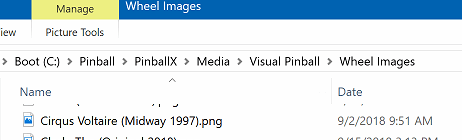
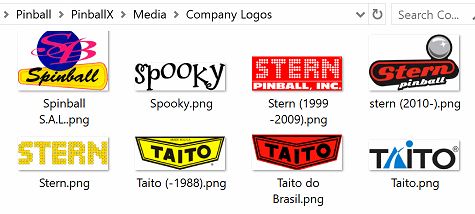
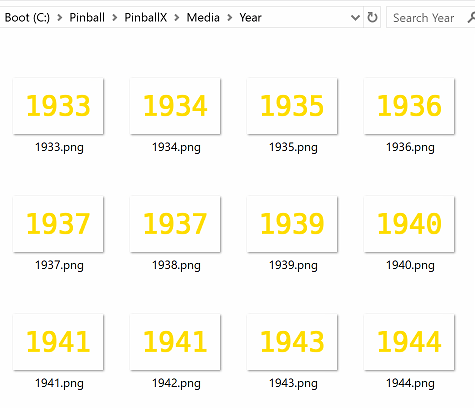
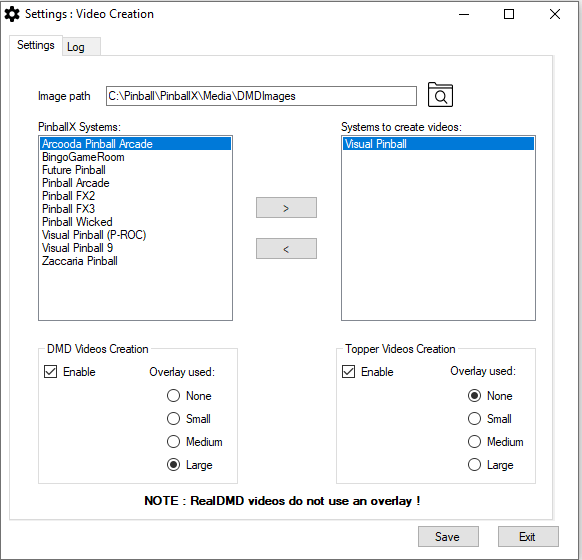
Hi All ! I created a small script (I'm not a programmer !) , that will create videos for DMD and Toppers I was inspired from@Thalamus videos posted on Vpinball forum. Thalamus created videos for real DMD color that first shows the wheel image for some seconds, than the year published and finally the company logo. This all makes a video of around 7 seconds. If you enable high score showing in PinballX, it is a nice show when scrolling through your front end. I wanted a program that could create this automatically and only created the missing ones And this is the result ! Based on your PinballX installation , the program will find your database/and media directory. Based on the tablename\Displayname in Gamemanager/Database manager it will check all your tables for a system. It will searches your wheel images, search for Company name and added the year with it. The logo is just the file it finds in the "Wheel images" directory The Company is the name that is found under "Media\Company Logos" You can use the same naming convention that PinballX is using (so also between, before and after year) The year is made by me. It is a directory that is in the ZIP file. Just place it somewhere and point in the CreateVideos_settings.exe to it. You can off course create your own year files with the font and color you like . Make sure the files are in PNG format and has a 228x142 resolution and name them like <year>.png if you got the Wheels and company and year setup, run the CreateVideos_settings.exe that is attached Image path: This is the path where you have your year images located PinballX systems All the Systems that are found in PinballX excluding the systems that needs to be created for videos Systems to create video In this section, put the systems that you need to create your video's . Add them with the > button or remove them with < DMD Videos Creation Enable/Disable DMD video creations. This will be save in the correct DMD folder ('DMD Videos', 'Real DMD Videos' or 'Real DMD Color Videos') Topper Videos Creation Enable/Disable Topper video creations. This will be save in the 'Topper videos' folder Overlay Used: None : No overlay is used. Small : Overlay with 320x80 pixels Medium : Overlay with 256x64 pixels pixels Large : Overlay with 128x32 pixels pixel NOTE : Real DMD video's are always 128x32 without overlay ! (system will detect if real DMD is used) EXTRA note : Starting from Version 3.3.2 I have added animated images as well that can be used as source file. A good animated source pack is @scuttersCompany Logo pack. Unfortunately, this pack shows pretty awesome in the PinballX front end, but the animations are adjusted for the frontend. If you use this pack directly to create your DMD or Topper videos, the videos do not show correct. To avoid this problem, I introduced a 'non documented' feature. You are now able to select a different path for company tables, or for your wheel images. Doing this, the wheels/company logo's do still shows fine in your frontend, but you can use a different set to create your DMD/Topper videos. In the download file, I have added a folder called AlternateCompanysLogos. This folder contains the awesome Scutters animated logo's, but I modified them to be used for this tool. To use another folder for company logo's, you must edit the CreateVideos.ini file with (for example) notepad.exe under the [images] section add the following line AlternateCompanyPath= followed by the complete path where you have logo's The same can be done for wheels as well. In the [System] section, you must add a line AlternateWheelPath followed by the system number and with the path behind it This will ignore the default path that PinballX is using and uses your other path for creating your video's Here's an example of mine INI file I used an alternative company path and only for visual pinball a different set of wheels to create my videos [Images] PathtoImages=C:\Pinball\Tools\CreateDMDToppervideos\YearImages AlternateCompanyPath=C:\Pinball\Tools\CreateDMDToppervideos\AlternateCompanys [Global] LogSize=0 LogPath=C:\Pinball\PinballX\LOG LogFileName=CreateVideos.log LogLevel=LOGLVL_INFO [System] 1=Visual Pinball 9 4=Visual Pinball (P-ROC) 2=Visual Pinball 3=Zaccaria Pinball AlternateWheelPath2=C:\Pinball\Tools\CreateDMDToppervideos\AlternateVisualPinballWheels [Videos] DMDOverlay=None CreateDMD=True CreateTopper=False Example Videos : RealDMD : None: Small: Medium: Large : I hope all makes sense Here is the program, including the Year folder (put that somewhere on your drive and make sure the CreateVideos_settings.exe is pointing to that folder) Just run the CreateVideos_settings.exe and setup your configuration Launch CreateVideos.exe to create your missing videos. By default the logfile is set to the same directory as where you run the program from. missing wheel/company and other errors will be displayed in here. As I said : I'm not a programmer, so please be kind if you have some feedback. Special thanks to @Thalamus who inspired me to create this script. Also special thanks to @scutters who gave the template of the large 128x32 overlay (based on that I create the other overlays) And thanks to @joyrider3774 for the extra feature request and testing of all this















- 78 replies
-
- 3
-
-
-
- app
- application
- (and 1 more)
-

Version 1.0.0
18 downloads
VPX & Backglass File Checker is a Windows application designed for users who use DirectB2S Match in B2S Server The VPX & Backglass File Checker is a Windows application designed to help users manage their Visual Pinball X (VPX) and DirectB2S backglass files efficiently. It scans a selected directory and checks whether corresponding .directb2s files exist for each .vpx file, ensuring that all required files for a table are properly paired. How to Use Select the Directory to Scan Click the Browse button next to "Select Directory." Choose the folder where your VPX and DirectB2S files are stored. The path will be saved for future use. Set the CSV Output Path Click the Browse button next to "CSV Output Path." Select or enter the location where the report should be saved. This path will also be remembered for next time. Choose a Delimiter Select the preferred delimiter (e.g., comma, semicolon, tab). This controls how the CSV file separates values. Generate the Report Click Generate CSV to scan the selected folder. The application will list detected files and their pairing status in the UI. A CSV report will be saved to the selected output location. -

Version 1.0.0
1127 downloads
Tarcisio Style Wheels for Zen Studio's Pinball M -
im not sure what happen but my pinballx database has an error could not find pinballx installation directory
-

Version 22.09.05
175 downloads
Scutters and MIke DA Spike are proud to present a user manual for Database Manager This documentation is also included with the latest version of DBM , but for people who wants to know what you can do with it, it is available as single download as well. This document is updated and contains all the features that are available in version 2022.09.05 and PinballX 5.50 (and higher) This document is updated and contains all the features that are available in version 2022.07.15.0 This document is based on DBM version 2022.05.14.0 and contains all the features -
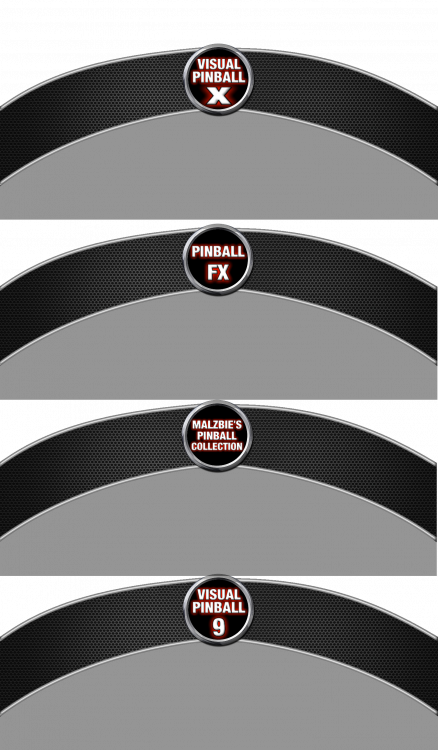
I began reorganizing my cabinet and wanted to implement standardized system underlays. In doing so, I decided to completely redesign the honeycomb structure shown in the attached image. Starting from scratch, I meticulously rebuilt every detail, and now it's presented in stunning 4K resolution. I hope the clarity and precision of this new design inspire you here you can download them :


-

Version 1.0.0
413 downloads
While reorganizing the tables and systems in my cabinet, I utilized @scutters his spinning ball tool to design new 4K spinning system underlays for both Desktop (straight) and cabinet (curved) configurations I have completely redesigned the honeycomb structure in stunning 4K resolution. Scutters his tool: Should additional items be required, kindly inform me and share the details in the subsequent thread. -
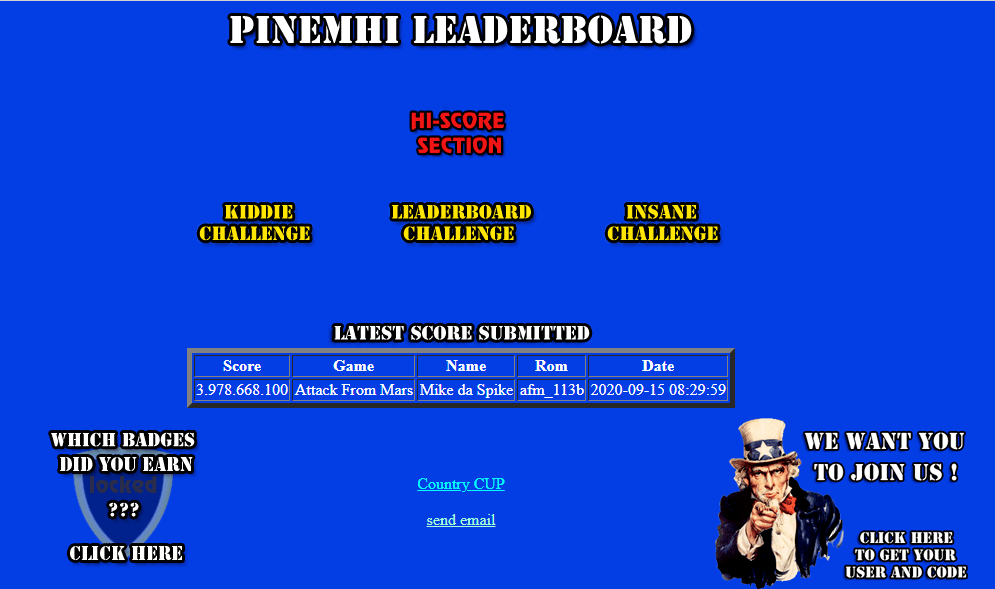
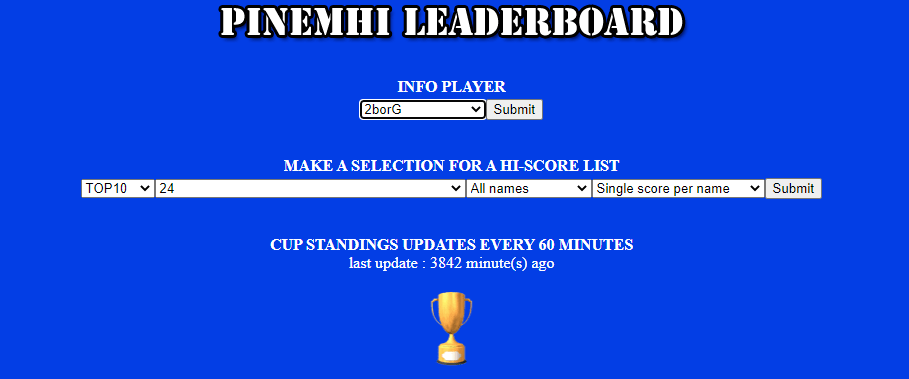
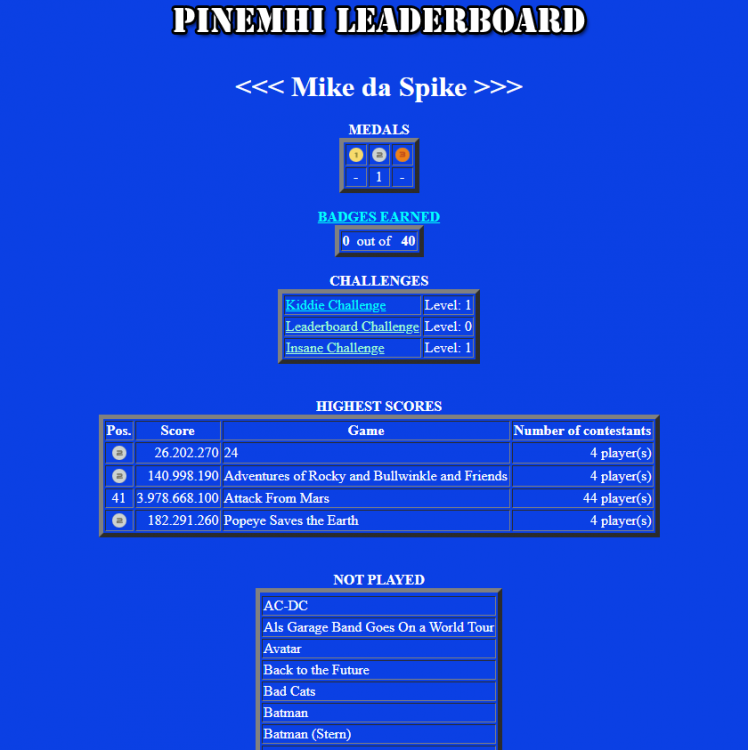
I just wanted to bring PINemHI leaderboard again to everybody's attention. This small program from @Dna Disturber is really awesome, light weighted and super easy to use. What does it do ? PINemHi LeaderBoard is a program that catches the score and specialscores from player 1 The normal score doesn't have to be on the hiscore table of the game, even scores like 1000 can be submitted. Special scores however can only be submitted if they are over the score of the hiscore table. Special scores are for instance , 20 loops (back to the future) or 50 martians killed (attack from mars) and so on... If you wanna go for SPECIAL SCORES the use of a new,clean nvram might be handy as you can get the scores more easy (especially helpful when trying to get a challenge) If you have a nice score, just don't start a new game but just quit the game, PINemHi LeaderBoard will do the rest. When quitting a game you don't have to rush , just as long as you don't start a new game the score(s) can be retrieved. The scores are sent to the website http://pinemhi.com/hiscores.php Here you can look at your scores and the scores from others and even do challenges. In the new version of PINemHi Leaderboard it is not necessary to use a plugin for a frontend. There is a monitor that you start and that will monitor for activity. You can play in a frontend or just by starting visual pinball. The monitor wil register your scores. At the moment 131 games are supported. During a game it now also is possible to see your top 10 best scores that are on pinemhi leaderboard by pressing a button and of course special scores that you made (for example 20 loops), Also you can add 9 friends to see their scores as well you can see the top 10 best score for a table from people that joined the online leaderboard you can see the cup standings top 10 and your place in the cup Icing on the cake, there is a badges system in place that you can bring up during gameplay to see what kind of achievements you have made ! More icing on the cake , there is a challenge system that you can start with a single press of a button Installation Download from http://www.pinemhi.com/ (right upper corner) You can unzip the files to any folder you like. If you have an older version of pinemhi installed then i would recommend to rename the old pinemhi.ini as you might need some data from that to put in the new pinemhi.ini file. First thing to do after the unzip is to set the pinemhi_rom_monitor file to always execute with administrator rights. You can do this by right clicking and then properties,compatibility and there you will see the option to turn on execute as administrator open pinemhi.ini with your favorite text editor (I prefer notepad) And adjust the following settings : [paths] VP=C:\Visual Pinball\nvram\ FP=C:\Future Pinball\fpRAM\ Set the paths to VpinMame and Future pinball nvrams and fprams folder Set the paths and remember that the last character must be a \ By default the 3 options are set to enabled. You can change this by setting this to 0 [options] replays=1 hiscores=1 buyins=1 replays - this shows the replays when on hiscores - this shows the hiscores when on buyins - this shows the buyin hiscores when on For getting an account to send statistics, go to http://www.pinemhi.com/hiscores.php to register your name and get a code put these in the user section [user] name=XXXXXXXX code=YYYYYY The key section is to set a keyboard key to get challenges and information on screen Challenges are to be displayed in your frontend and information is during gameplay I hope this will be changed, so we can use a button as well (instead of a keyboard key) [keys] key=l challengekey=` I would suggest you pick a key that is not used by visual pinball or the frontend as the key will not function during gameplay, only to show the popups of course challengekey, this is the key to start your challenges with In the display section you can change how the information.chalanges are presented to you Don't forget to set cabinetview=1 if you use a cabinet (this will rotate the information popup) [display] fontcolor=cFFFFFF bgcolor=c000000 font=courier fontsize=s10 fontspecial=bold no_background=0 no_badges_background=1 cabinetview=1 screen=1 The online part will let you choose what you want to display [online] personal_scores=1 personal_special_scores=1 best_scores=1 friend_scores=1 cup_scores=1 badges=1 challengeskill=1 challengeskill is the level of challenges you want (1 = kiddie , 2 = normal , 3 = insane) would recommend kiddie to start with Add your friend(s) (maximum is 9) using their PINemHi Leaderboard name [friends] friend1= friend2= friend3= friend4= friend5= friend6= friend7= friend8= friend9= This looks hard, but this is a one time setup Now you need to do is run pinemhi_rom_monitor.exe at startup of Windows, so it will run always in the background If you run Visual Pinball with highest privileges (admin mode), you need to run PinEmhi Monitor also with high privilege. For some reasons , the program didn't want to run as admin when it runs automaticly. Although the EXE was set as run as admin, the program runs as normal user I created a little batch file that will run the monitor always as admin (Adjust last line with the correct path) This is only needed when running VP or FP as admin ! @echo off REM --> Check for permissions >nul 2>&1 "%SYSTEMROOT%\system32\cacls.exe" "%SYSTEMROOT%\system32\config\system" REM --> If error flag set, we do not have admin. if '%errorlevel%' NEQ '0' ( echo Requesting administrative privileges... goto UACPrompt ) else ( goto gotAdmin ) :UACPrompt echo Set UAC = CreateObject^("Shell.Application"^) > "%temp%\getadmin.vbs" set params = %*:"="" echo UAC.ShellExecute "cmd.exe", "/c %~s0 %params%", "", "runas", 0 >> "%temp%\getadmin.vbs" "%temp%\getadmin.vbs" del "%temp%\getadmin.vbs" exit /B :gotAdmin pushd "%CD%" CD /D "%~dp0" C:\Pinball\PinemHI\pinemhi_rom_monitor.exe For this an UAC will popup, but I disabled UAC popup on my system. And now use it ! Within your favorite front end press the challenge key and a new challenge will start If you start a challenge it will show you what table you must play and what the challenge is Just start the table and play ! But remember. When exiting this table, it will check at that moment the players 1 highscore ! So if you want to submit your score, after the "Game over", just exit the table and highscore will be submitted If you just want to set highscores, go to http://www.pinemhi.com/hiscores.php This page will show you the last submitted highscore from any user Click on the 'HI-SCore Section' And you can selection per user the stats. Also per table If you select your name and hit submit, you can see your stats. You can see also the NOT played games (The tables under highscore and not played are the tables that are supported now) You can also earn badges. It's very fun and you can show the rest of the world how you play (pretty bad, looking at my scores but I just set it up) Thanks again DNS Disturber for this tool that is already years available and still maintained I used a lot of texts from his installation manual and hope that more people will use this program. EDIT : KBE91's discovered the ability to use the Shift, Control, and Windows keys in combination with other keys. For instance, using '+m' as a hotkey triggers the action assigned to the 'Shift+M' key combination. Detailed combinations and their effects can be explored in the AutoHotkey documentation for hotkeys. https://www.autohotkey.com/docs/v1/Hotkeys.htm Example: key=+m above will trigger when you press 'Shift" and 'm'

-
Version 2024.08.13
1 download
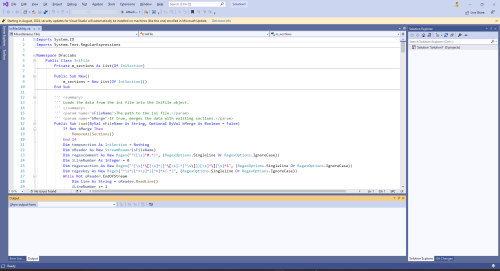
INI File Utility A VB.NET class for managing INI files, preserving the original order of sections and keys, with methods for loading, saving, adding, removing, and renaming entries. Features Load INI Files: Read and parse INI files into structured objects. Save INI Files: Write INI file data back to disk, preserving the original order. Manage Sections and Keys: Add, remove, and rename sections and keys. Preserve Order: Maintain the original order of sections and keys, appending new entries to the end. Also on Github https://github.com/MikedaSpike/IniFile.Utility but @Draco1962 wanted more copies ! This is a modified version of the one that is shipped with VB.NET PinballX Snap-In Plugin Template : -
Hi, followed this and managed to get to work, launch the tables, etc. https://forums.gameex.com/forums/topic/28881-guide-setup-zen-pinball-fx-and-pinball-m-in-pinballx-steam-version/page/2/#comment-218180 Only problem is exiting the table. Whilst it does exit in PinballX, the main program Pinball FX remains open in the background This means the more tables you open and close through PinballX for Pinball FX, the performance starts to suffer. Anyone else had this problem? Just need to make sure when table is exited, Pinball FX exits also. I think the problem is no way to close Pinball FX by a key, i.e. Esc. You need to go to setting tog with mouse and select Exit Game and then selected Yes I have Pinball FX 3 in PinballX and that closes correctly
-
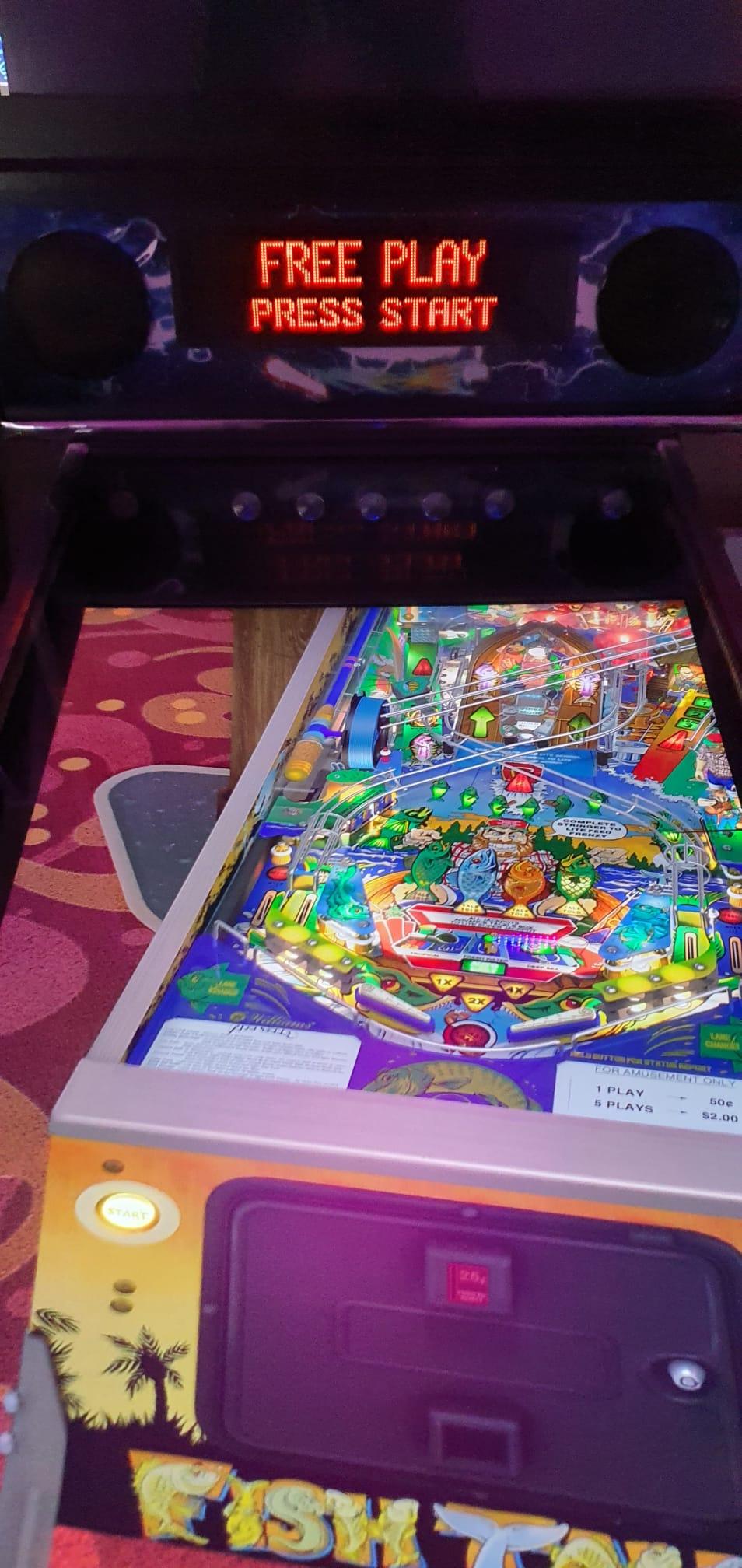
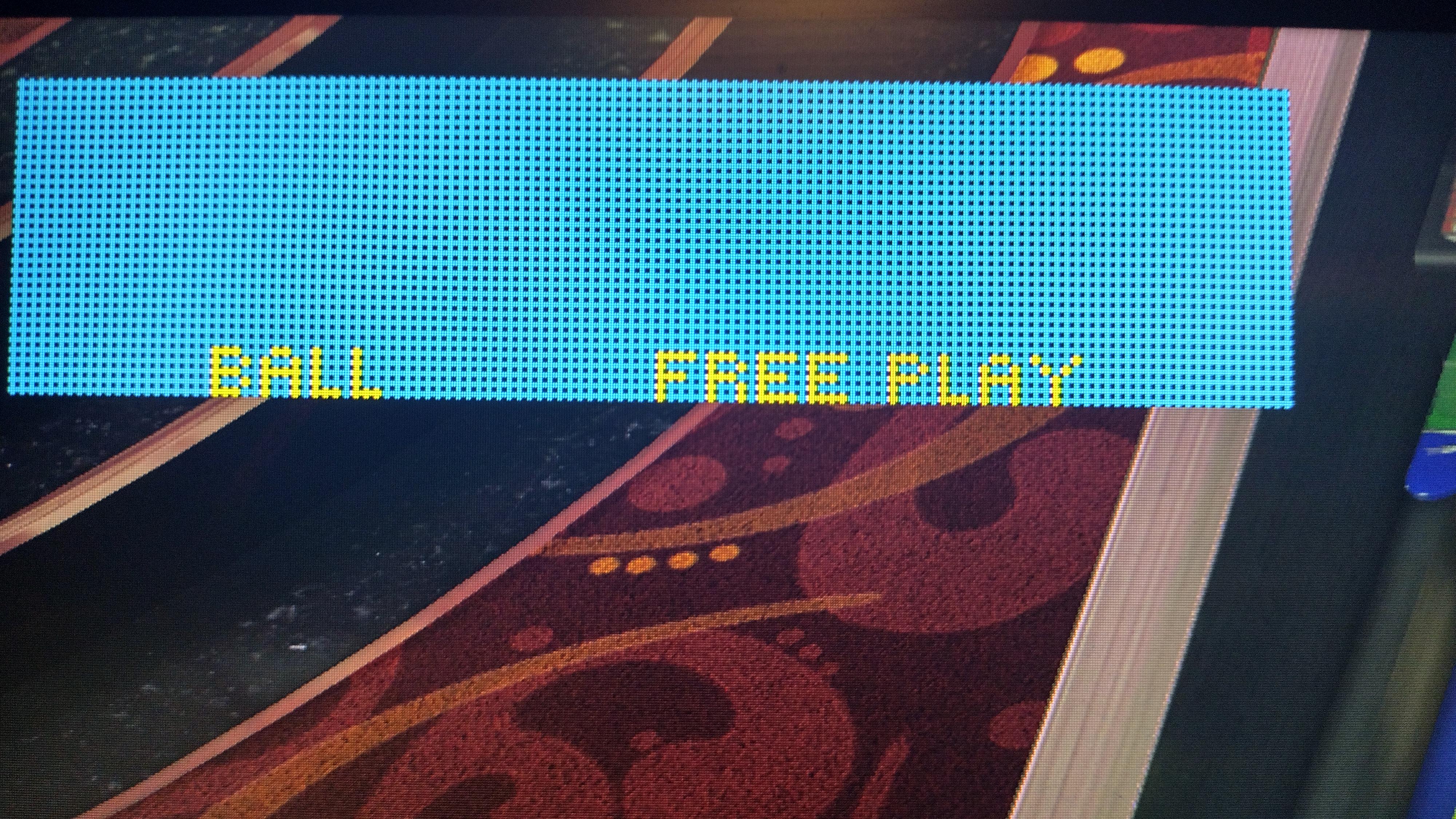
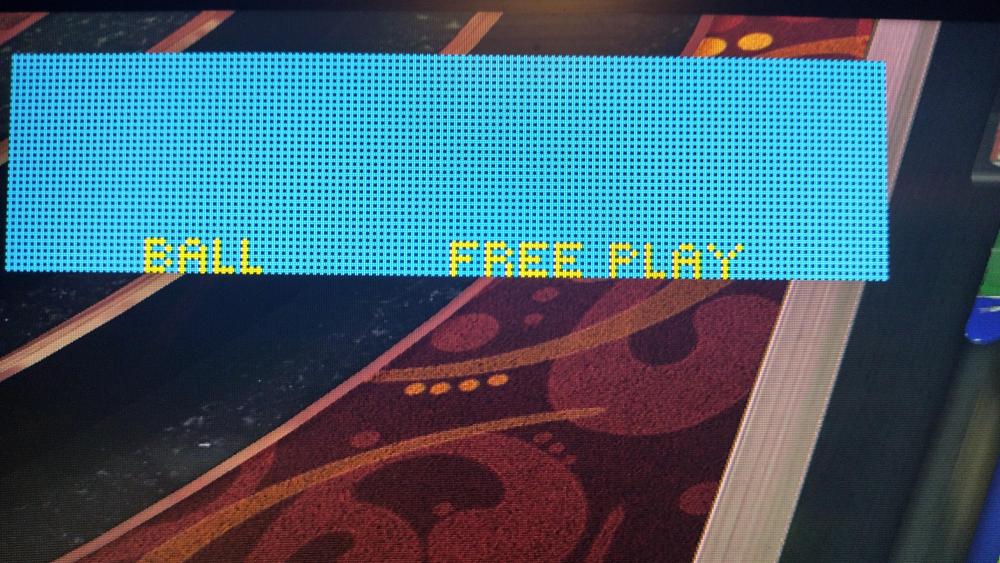
Hi - I did not want to start a new thread. Hope you can help I am nearly there with colourisation of the roms in FX - so close, yet so far. For example Fish Tales loads up a blue DMD and Indiana Jones and Creature from the Black Lagoon also similar - DMD all messed up colours but works in some sections - strange. The roms works in fine in VPX - just here there is a problem Testing using Desktop Activated cabinet mode Selected Dotmatrix Window / External DMD Device* Renamed tables in altcolor folder: 108 (Fish Tales) for example. Renamed as pin2dmd.pac Tried using Enviromental Values as in certain FAQ's Attached pics of Fish Tales - can see title very faint - when ball is locked it shows the scene 100% ok. Indiana Jones is all messed up - but shows the planes ok when you go up the ramps. Creature from the Black Lagoon starts fine but as soon as game starts, all messed up. *With the DMD log - unsure if this is correct - I could only get external DMD to show as an option in cabinet mode if I dropped my DMDDevice, DMDDevice.log.config and DMDDevice64.fll in the folder C:\Program Files (x86)\Steam\steamapps\common\Pinball FX\PinballFX\Binaries\Win64 That does not seem to be in any guide - is that correct? I am guessing there needs to be something in Pinball FX to link it to where your external DMD is saved? Hope someone can help DmdDevice.log

-
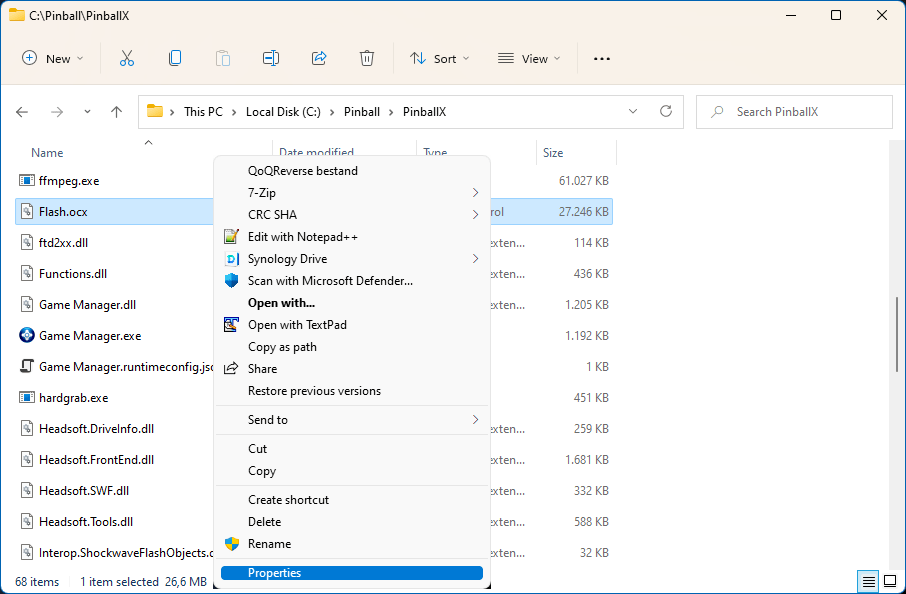
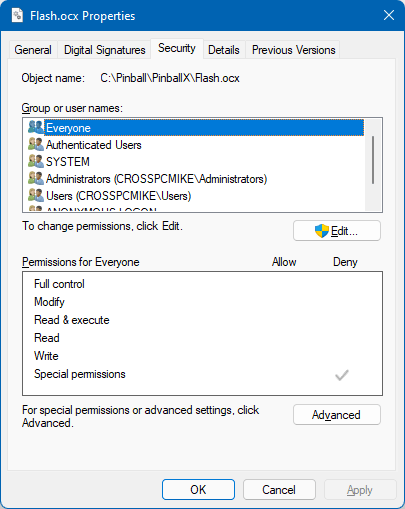
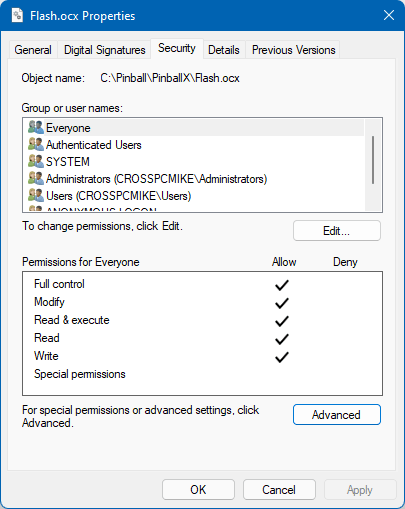
When you need to remove the flash.ocx ,because your log file shows: 01:21:02.14 10/26/1985: Please try deleting flash.ocx in the installation folder and then reininstall PinballX. 01:21:02.14 10/26/1985: You may need to change security properties on the file. 01:21:02.14 10/26/1985: If PinballX does not initialize you should address this issue. It could be a difficult thing to remove the file. I hope this tutorial will make it easier. Navigate to your PinballX folder via the windows explorer (My example is in c:\pinball\PinballX, but could be installed in another drive/folder) and locate flash.ocx. Right click on it and select Properties Click on the security Tab and select Edit In the Permisissions for FlashOCX, make sure Everyone is selected And click on the Allow Full Control Click Apply and click OK after that Now click on Advanced There will be 2 entries for Everyone. Select the Deny Everyone and click remove Click again on Apply and click OK Click OK to close the window Now you are able to delete the Flash.ocx file
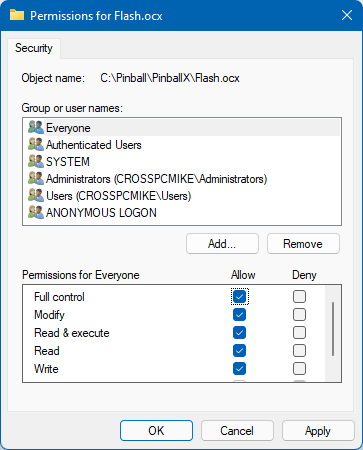
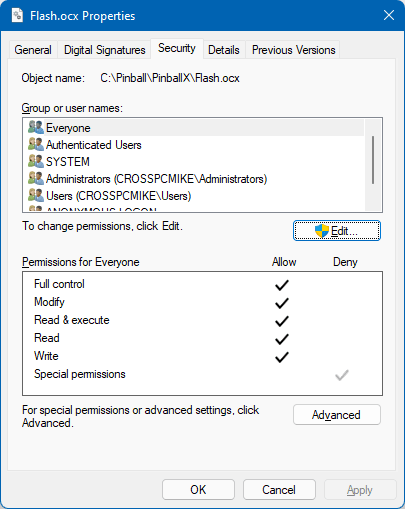
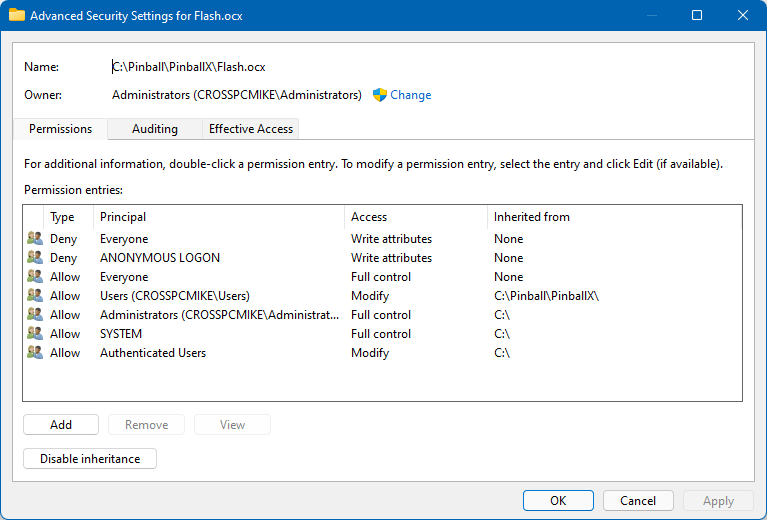
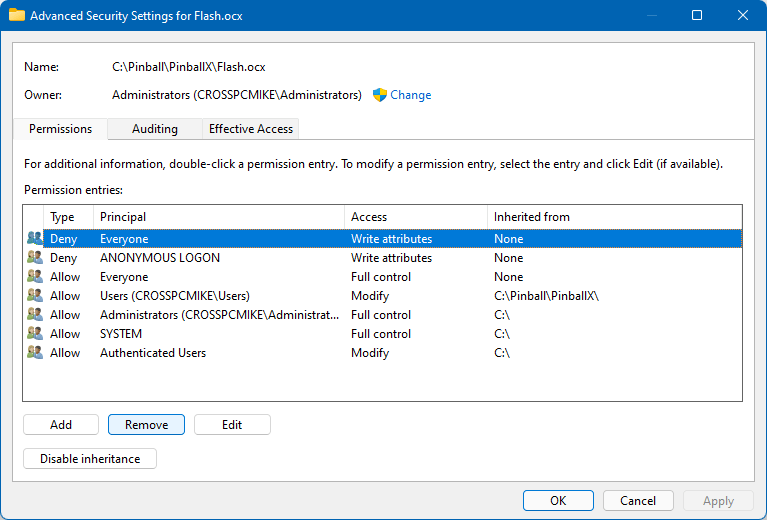
-
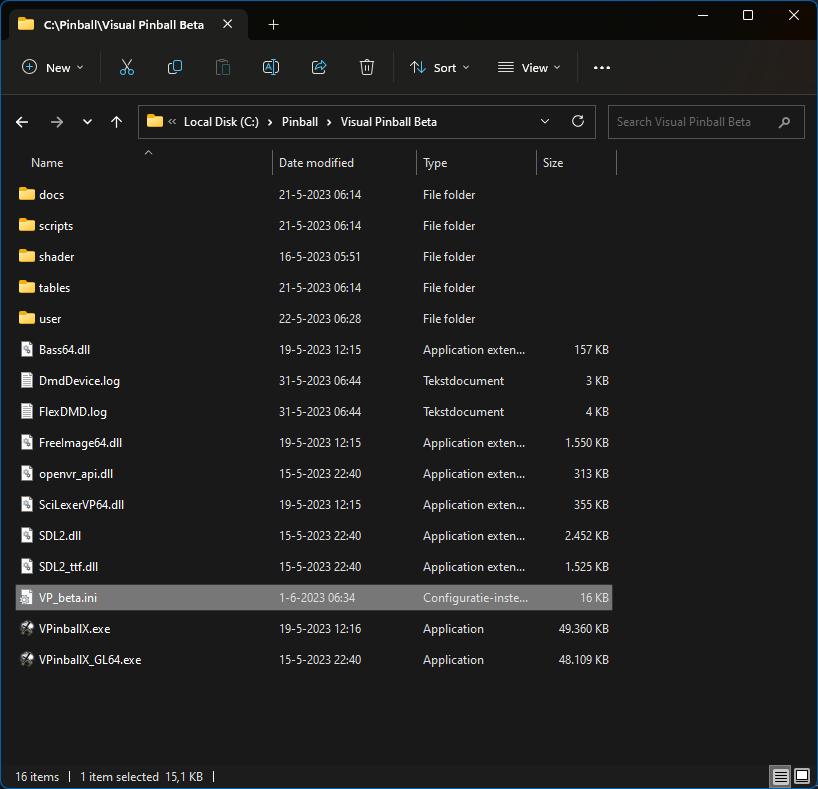
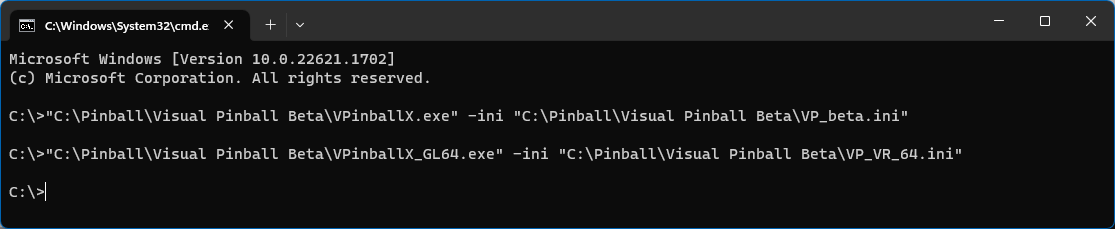
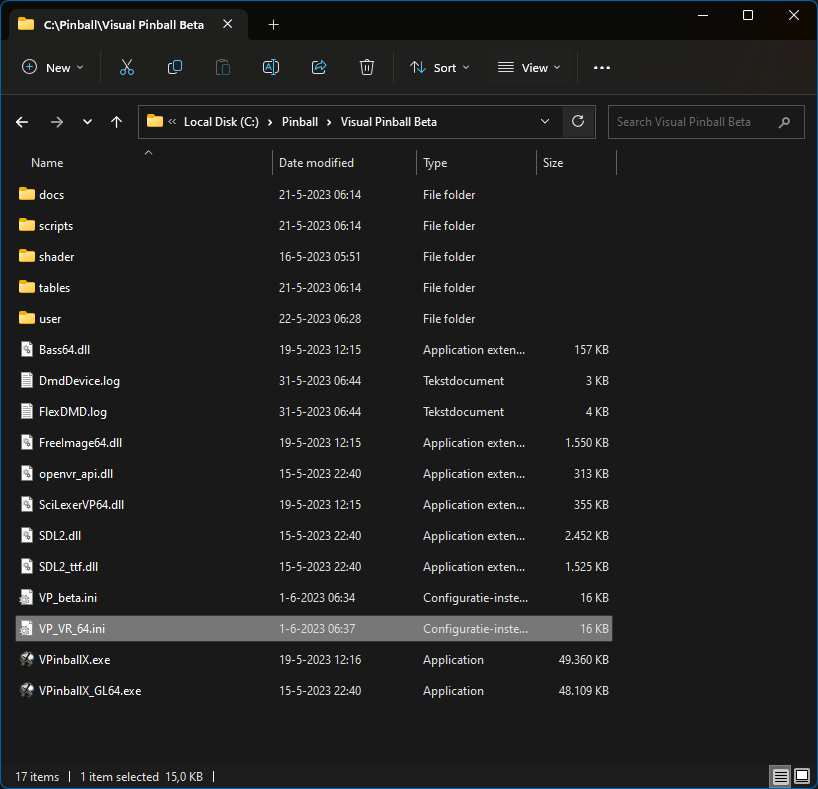
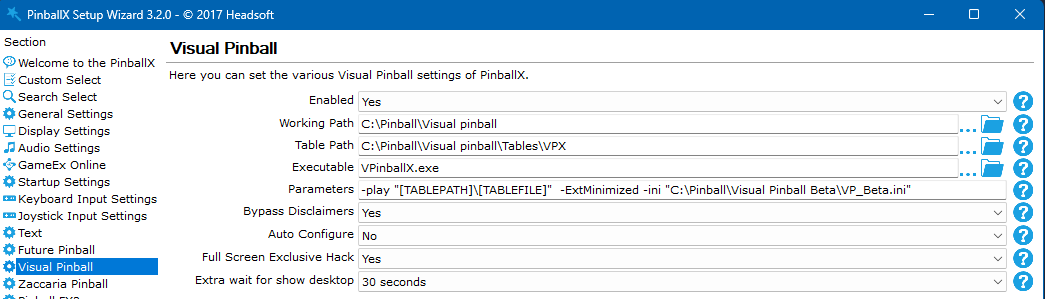
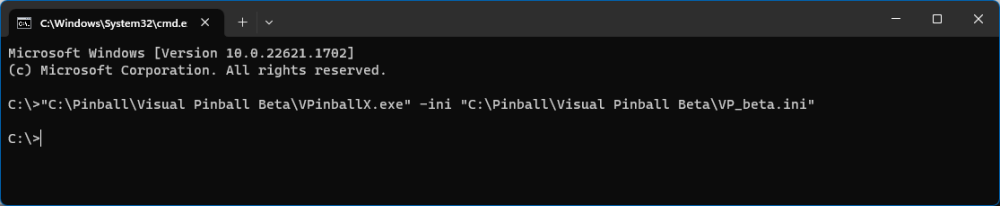
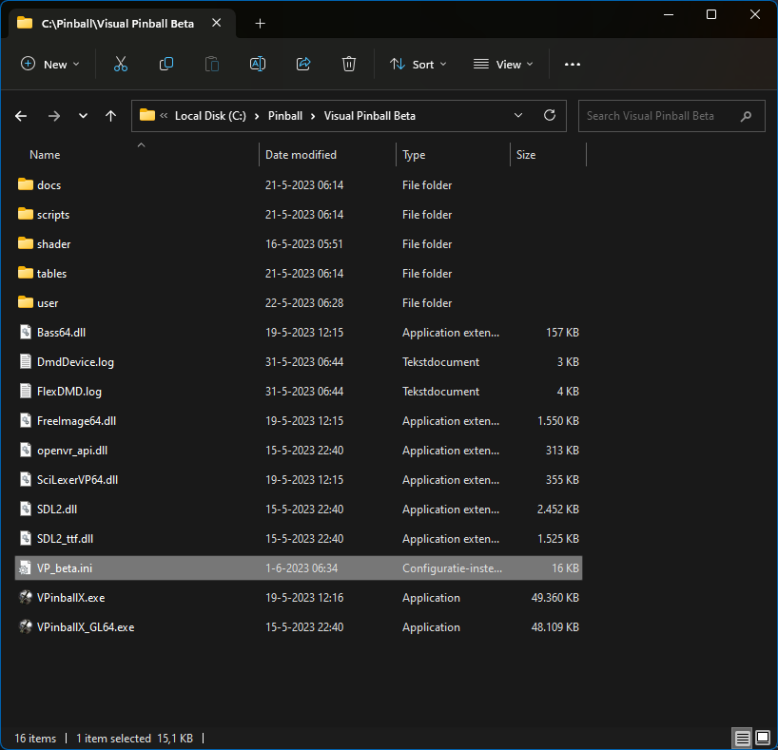
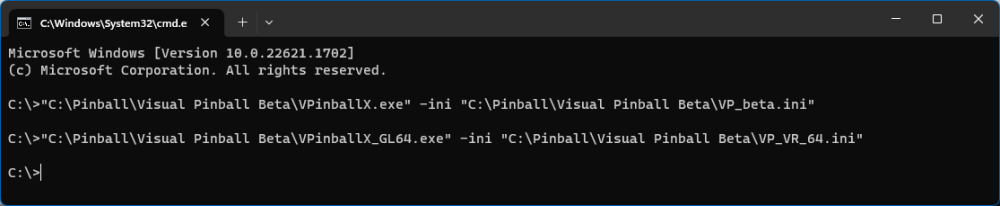
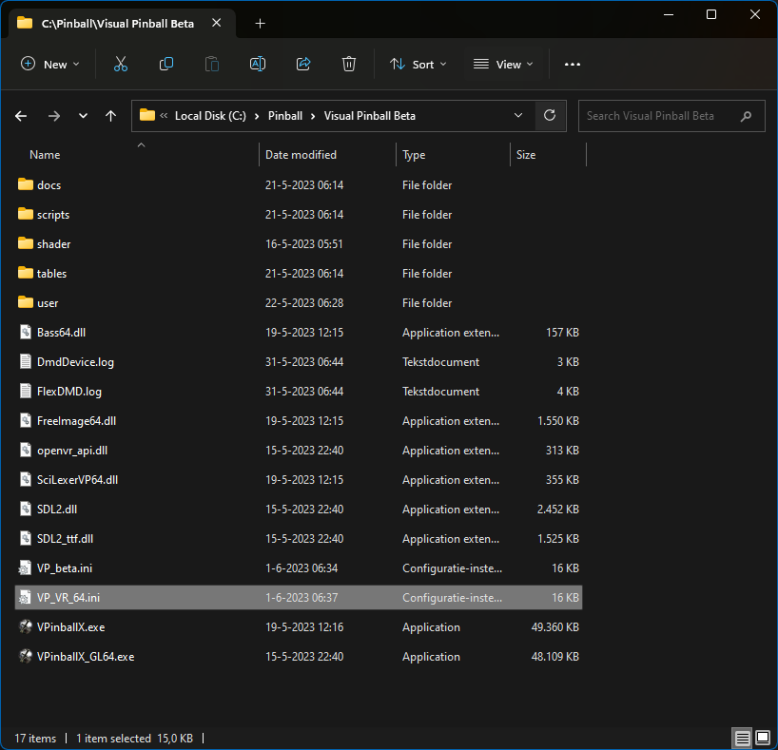
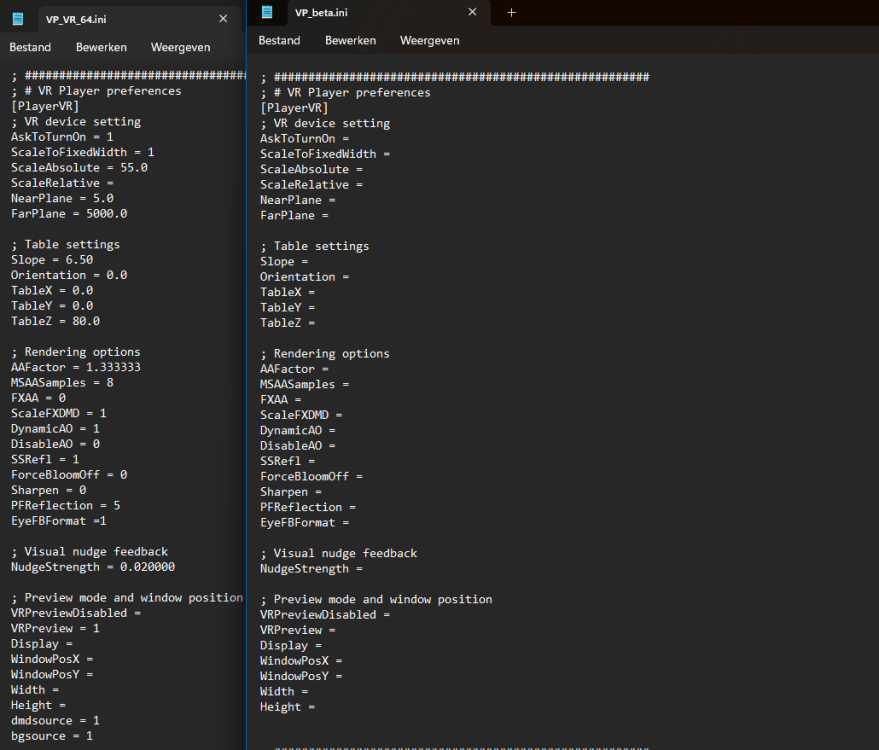
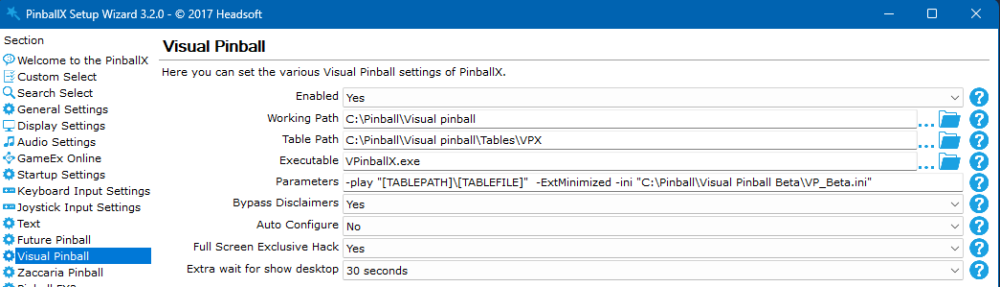
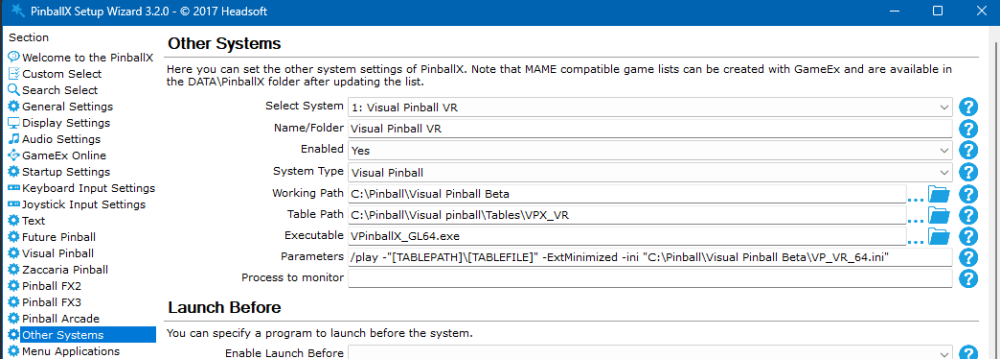
Starting from Visual Pinball 10.8, the settings from VP is moved from registry to INI file. This make the flexibility of Visual Pinball easier during transfer, but you can also have more Visual Pinball systems on your system, and uses different settings files for this. Start with some back ground : To use Visual pinball, you need a complete setup of VP. For the basic you need to have a working VpinMame and Directb2sserver (this can be accomplished by using the AIO installer from the Vpinball github ) if you want more advanced work, You properly will use DMDdevice.dll, FlexDMD, DOF and pinup player If all is working for your desktop/cabinet/vr/head tracking environment, you can have add multiple versions to your system as well. You can use this for testing a Beta, adding GL support or separate versions between 32 bit and 64 bit. the issues with all versions before VP 10.8 was that when you launch any version of Vpinball in any location, it uses the registry and all has the same configuration. From VP 10.8 the ini file is located in %appdata%\VpinballX and by default it uses VPinballX.ini When this file is not present, it will check if there is any registry entry and will transform the registry keys into the VPinballX.ini file. When file is present, all instances will use this file. But if you want a different setting for a specific table, or even for a complete system, without changing registry (see for example my post over setting up VR https://forums.gameex.com/forums/topic/28465-pinballx-with-vr-on-oculusmeta-quest ), there will be an easy way now When launching from the command line VpinballX.exe (Vpinball_gl.exe, vpinballX64.exe or Vpinball_gl64.exe) with the parameter -ini <Full path to ini file> it will creates a new INI file on the path you specified. the INI file is directly created and contains the values which I have from my registry. As I launched VpinballX, I can make a configuration changes and this will all be saved in the newly created file When Launching the GL version of VpinballX, an extra option is available for VR. The VR settings will also be available in the INI file. But, if you want to have different settings for VR as your normall version, just launch the GL version with a different setting : (in my example I mixed VP 32 bit with GL 64 bit) So now I got 2 settings files. 1 completely configured for VR and 1 for regular playing (this is just an example, you can also do it for tables with issues, head tracking, or even switching between desktop and cabinet.) to use this file during game play ? At the time this post was made, PinballX can only switch command line parameters via setting up a new system, or using a custom launcher (with a variable that can be set). launch Settings.exe and go to your Visual pinball system add to 'Parameters' the -ini option with the path to your ini and for the 2nd system : I showed just 1 example for different INI files, but it's up to you to use it for setting up different INI files for your system. Having issues with 1 or 2 table with the performance, and don't want to set it for all tables, just create a INI file with a bit lower specs that runs the table fine and launch this table with it. Make sure you make a backup of your ini file, in case something happen to your system ! Default file is %appdata%\Vpinball\VpinballX.ini (if you launch the VpinballX without the -INI parameter, it will use this file)
-
Pinball M Tarcisio Style Wheels View File Tarcisio Style Wheels for Zen Studio's Pinball M Submitter Mike_da_Spike Submitted 01/31/24 Category Wheel Images
-
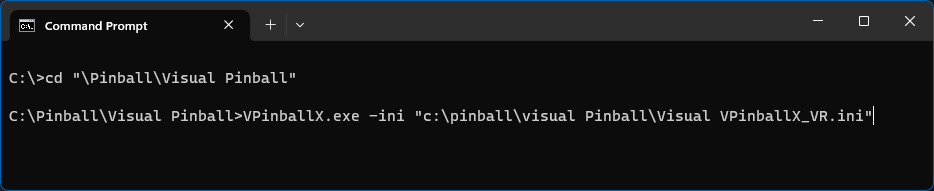
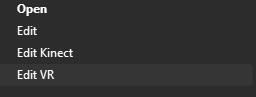
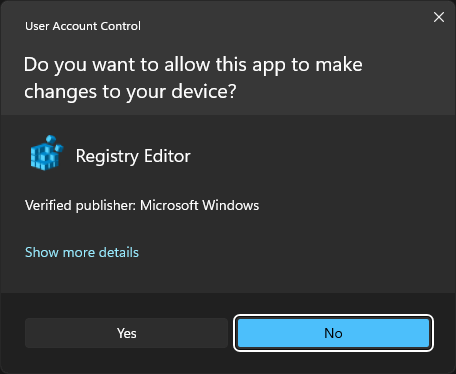
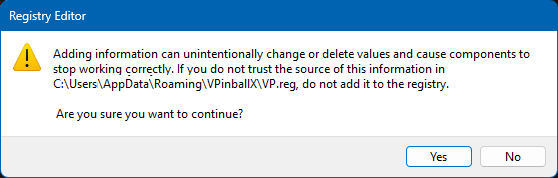
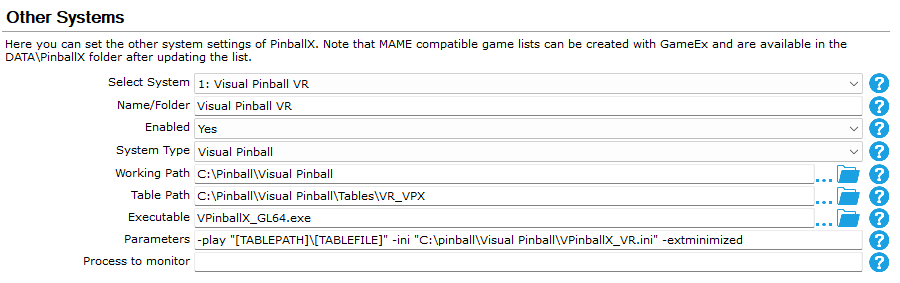
@Dacstyle asked me for documentation for settings up Vpinball 10.8 (still in beta) with different settings. Some use cases : Default cabinet support Used for tables with that needs some lower graphics settings VR system Headtracking devices In previous versions all settings where set in the registry and using for example another system needs a launch script to change the value in the registry. Starting from VisualPinballX 10.8 all the settings are stored in an INI file When launching the VpinballX.EXE (VpinballX_GL.EXE, VPinballX64.exe or VPinballX_GL64.exe) for the first time, it will copy all the settings from the registry to %appdata%\VPinballX\VPinballX.ini When this file exists, everytime you launch VpinballX 10.8 (or higher) it will use this INI file. any change you make to the configuration will be made to this file as well To use Visual Pinball with different settings, you can make copies of this file. In my example I will make 3 different settings files : Standard Visual Pinball Visual Pinball 64 bit GL for headtracking Visual Pinball 64 Bit GL for VR But as I said, you can make your settings file If you save the INI file next to your table file, with the same table name, it will use this ini file for the specific table as well ! (But hard to manage 1100+ tables like me) My steps : Copy the file %appdata%\VPinballX\VPinballX.ini to your Visual Pinball Directory. For me it is C:\Pinball\Visual Pinball Rename the file so, it you know the purpose of it In my example : Will be the standard VP settings (no extra ini, just the one from appdata) Visual VPinballX_Headtracking.ini Visual VPinballX_VR.ini So I got 2 ini files in my Visual Pinball directory : To launch Visual Pinball with a specific INI file, you need to launch the exe from the command line with a special -ini parameters : For example to launch the VR : This is not really user friendly, so I want to make it a bit easier. When just checking tables, I'm not using my front end, but just using file explorer. When I right click on them, I want to options that I created (see the 3 above). Like this : Open and Edit are still the default But 'Edit Kinect' and 'Edit VR', I added (with the correct Ini files). Create a text file call VP.reg (or anything with the extension .reg) paste the following into it : Windows Registry Editor Version 5.00 [HKEY_CURRENT_USER\Software\Classes\VPX_auto_file\shell\Edit VR] [HKEY_CURRENT_USER\Software\Classes\VPX_auto_file\shell\Edit VR\command] @="\"C:\\Pinball\\Visual Pinball Beta\\VPinballX_gl64.exe\" -ini \"C:\\pinball\\Visual Pinball\\VPinballX_VR.ini\" -edit \"%1\"" [HKEY_CURRENT_USER\Software\Classes\VPX_auto_file\shell\Edit Kinect] [HKEY_CURRENT_USER\Software\Classes\VPX_auto_file\shell\Edit Kinect\command] @="\"C:\\Pinball\\Visual Pinball Beta\\VPinballX64.exe\" -ini \"C:\\pinball\\Visual Pinball\\Visual VPinballX_Headtracking.ini\" -edit \"%1\"" Modify the names to display ('Edit Kinect' and 'Edit VR') for your own purpose Also change the paths to the EXE files and the INI files to your own needs save the file and should show up like this : Double click the file click Yes and click Yes to confirm Now you have the 2 extra menu options Note : If you want to setup for all users, replace the following lines from: HKEY_CURRENT_USER\Software\Classes\VPX_auto_file\shell to: HKEY_LOCAL_MACHINE\SOFTWARE\Classes\VPX_auto_file\shell If you now right click on a VPX file, you can edit this in the system you want, and when exiting Visual Pinball , it will save it to that file. For example, we only copied the files to the Viusl Pinball Direcorty. now I want to setup my VR environment : I right click on a VPX and select Edit VR Visual Pinball will open (Gl version with the ini file for VR) I can make my adjustments for any settings and close Visual Pinball. this will automaticlly save the INI file Testing a table ? just click run (F5) in the editor Now do this for all your ini files. If you want to setup a specific INI file for a table that needs special threatment. just copy an in ifile to the location where your VPX table is, and name the INI file with the same name : How to setup your frontend ? Different configs needs to be separated by extra System (I hope that Tom will add this feature request ) to the parameters, add -ini with the INI file as well I have my VR tables in a different folder and set it up like this :






-
What a great tutorial, this has been a big help! one question if I may about the fx launchers for pinball fx: when exiting a game and starting a new one it always starts the previous game instead. Is it a parameter somehow that I’m missing? Thank you !
-
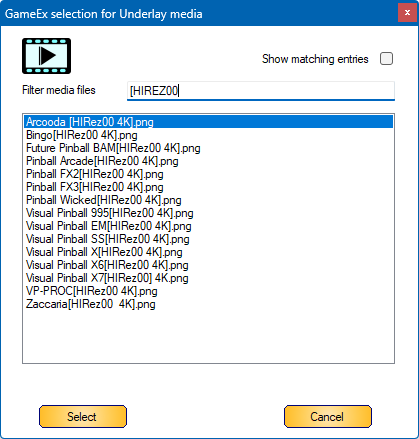
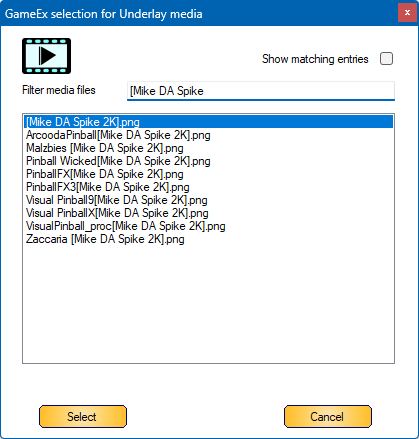
HIRez00 created a long time ago some underlays for me. He asked me to NOT distribute them, and I respected that. As I understand from him, he was massive fallout, backlash and accusations for his latest release of Halloween. Some big names (I will not mention them by name) slammed him publicly and even went as far to get him banned / thrown off of Facebook, which was the last straw for him. He will no longer be posting any of his creations for the VPX community to download freely on any public site. But he gave me permission to post his underlays. The files are all 4k If put the underlays on FTP with suffix [HIRez00 4K] in the name on /-PinballX-/Media/System Underlays and can be downloaded easily with Database manager Here are some examples: I re-created some of those files in red and resolution is 2k (1440x2560) as my playfield monitor is just QHD Also on FTP with Suffix [Mike DA Spike 2k] Here are some examples as well : I want to thank HIRez00 for all his great work and contribution for the pinball community in the past years. Thanks buddy, I really appreciate the work you did ! Within PBX it can show like this :