|



shaunopp
-
Posts
300 -
Joined
-
Last visited
Content Type
Profiles
Forums
Events
Downloads
Store
Articles
Everything posted by shaunopp
-
As to the slow scrolling, you say: Is it actually scrolling slowly or is it taking forever because you're only going one game at a time? GameEx has an Alpha Paging function where if you hold in the Alpha Paging key and then press right/left on the joystick you'll jump to the next letter alphabetically or up/down you'll go up or down one full page. If you're not using this then yes, it will take forever to scroll through your list to get to your game, especially if it starts with 'Z'.
-
For something more advanced you'll want to use cpviewer that tempest provides the link for. A more simple switch is to substitute your image with the control panel image in the GameEx theme under Program Files-->GameEx-->Themes. You can move the labels with the Theme Editor.
-
That's right Nologic, your favorite emulator is back. Ok, so a couple days turned into 20 or so but I competely finished all 3 of my cabs so that's cool! I didn't forgot about testing this and thanks again for the help. Results below. Yep, found the issue with the sound. My machine doesn't like having the Filter Enabled, Filter Cutoff, Surround Lite or Stereo Exciter on. Removing these 4 lines from your Config-->ZiNc_D3D.cfg did the trick. It may just be one of those options it doesn't like, not sure. I found out by running the ZiNc GUI to see if I had sound, I did, and those options were shut off so I just matched. This didn't do anything for me. I'm running the most recent stable version, doesn't look like there's any beta's out there currently. Became a moot point, see below. This fixed my issue completely. What would happen previously is Xpadder would still be open after returning to GameEx so when I'd press my Alpha Paging key (my 3rd button) it was still mapped to 'D' and it would jump to the D's in the list. This also fixed the problem of the controls not working after each game. You'd quit out of the game, come back into GameEx, launch another game and the controls wouldn't work. You'd have to go back to the desktop, kill Xpadder and come back into GameEx and then they would work again. The new executables fixed it so YOU DA MAN! Only remaining issues: In HyperAthlete if you let the animations run in between events it will sometimes hang. I think this is a quirk of that game and has nothing to do with anything we've been discussing though. Susume still black screens but this is a ROM issue on my part. I expect once I get the ROM going it will work by the others. I now consider ZiNc's ass kicked so thanks for bending it to my will!
-
Unfortunately Killer Instinct emulation seemed to get worse for certain machines after with the newer releases of mame for some reason. Search Killer Instinct on the mameworld forums and you'll find many people with problems. I specifically had to setup an older version of mame (v0.113 or prior) for KI on my old machine to run it better. Not sure that you can launch alt versions of mame in GameEx but this may be one thing to check independantly first, see if it runs in a .113 or prior version of mame ok outside of GameEx. Another thing you may want to try is setting up a custom ini file just for Killer Instinct and using only -waitvsync, not -triplebuffer. I've found -waitvsync fixes tearing probs without messing with the sound. It would go something like this: Inside of mame-->ini folder make a text file named kinst.ini with something similar to mine below. You can use whatever commandline switches you want but be sure to include the waitvsync 1: ## kinst ## screen0 \\. \DISPLAY1 switchres 1 hwstretch 0 bezel 0 backdrop 0 waitvsync 1 resolution 320x240 resolution0 320x240 That'd be my only other idea. Good luck!
-
Ok, I now have a better understanding of how you have your UltraStiks hooked up and no, you're not missing anything... but unfortunately I have some bad news. Apparently GameEx won't let you mix and match between Keyboard Input and Joystick Input when it comes to Alpha Paging. I have confirmed this mixing/matching doesn't work on my cab. For example, you can't press the Keyboard Input Alpha Key and then press a Game Controller Joystick left/right and expect it to Alpha Page. You either have to have your joystick and buttons as Game Controllers or as Keystrokes to use them in tandem with Alpha Paging. So, here's your choices: Wire your U360 Buttons as Game Controller buttons Wire your U360 Joystick as keystrokes Use a program like Xpadder to map keys to your U360 Use the Keyboard for Alpha Paging navigation (you should still be able to map Select, Back & Home to buttons) Beg Tom to change the behaviour in GameEx if it's even possible Sorry to be the bearer of bad news but at least now you know you're not crazy and have some options to proceed.
-
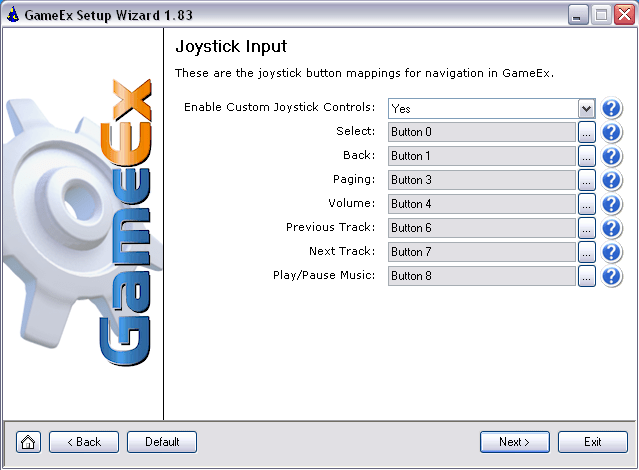
Hey Tempest, No problem, sorry for the late reply, I missed Yesod's response. Here's a more step by step instruction. 1. You need to go into the GameEx Setup Wizard and Select Custom-->Next-->check Keyboard Input & Joystick Input -->Next 2. The Keyboard Input page is for mapping keys to perform GameEx actions. 3. The Joystick Input page is for mapping Joysticks (and their buttons) to perform GameEx actions. 4. Don't get confused here, if you have your joystick directions setup as keystrokes (as in the case of a regular ipac) you set the buttons under Keyboard Input. Joystick Input is for USB Game Controller devices only. Be sure you have Enable Custom Keyboard/Joystick set to Yes on each of those pages and avoid using keys like Shift,Ctrl,Alt etc. for GameEx control 5. Depending on how you have your ipac/mini-pac/u360/joysticks etc. setup you may need to use one or both of these. You can press the '...' to the right each action and then press the control you wish to map to it or type it in directly. 6. If nothing's happening double check that your button is mapped correctly and set to the corresponding key you've set in GameEx. Go into WinIpac or a text editor and press the button to make sure it types a 'z' or whatever you've mapped to it and set in GameEx. In the case of a Joystick (or U360) go into the Windows Game Controller control panel and make sure it shows up. 7. Remember you have to hold down the Alpha Paging key/button down while you press left/right/up/down. Usually it should be mapped so if you hold down the Alpha paging key+right/left it will jump forward and back alphabetically and pressing Alpha key+up/down will page up/down. On my cab I have my U360's hooked up via USB and my 6 buttons hooked up with the optional wiring harness. This is called Input Mode. Since it's seen as a USB Game Controller the GameEx controls are mapped under Joystick Input. I have Select mapped to Button 0, Back to Button 1 and Alpha to Button 2, the 3 top buttons for player 1. If you had a regular Ipac or were using a U360 in output mode (going back to the mini-pac and mapping the buttons as keystrokes) you'd need to map the keys appropriately on the Keyboard Input page to the appropriate keys. Hope that helps and doesn't make it more confusing. It's actually harder to explain than to do but will definitely work. Let me know if you have further ??'s
-
Have you emailed Andy at Ultimarc? He's really helpful and since it's his product and he's very knowledgeable about monitors I bet he could either suggest a solution or confirm that it's unfixable with that monitor. There are also some real monitor guru's on the byoac forums. I run an ArcadeVGA card with a 27" Betson monitor (although it's new) without any issues and wouldn't dream of going back to a TV or computer monitor. For reference, I run windows and GameEx at 800x600. It's a beautiful thing once it's setup and working correctly so hang in there, it's worth the effort!
-
I remapped around those keys in Mame also. Besides Nulldc, GameEx doesn't seem to like them for the Select, Back or Alpha Paging designation.
-
Sometimes a new computer is just easier, especially if you've had yours for 4 years. You can get a lot of computer these days for relatively cheap at places like the Dell Outlet store online. I've purchased 3 of my Arcade PC's from them. $219 for a Scratch and Dent Inspiron AMD Athlon 64 Dual Core - 2100, 1GB RAM, 250GB HD. http://outlet.us.dell.com/ARBOnlineSales/t...;l=en&s=dfh I'm all for saving a dime but by the time you calculate the time and frustration it may take to fix your problem plus $$ for a new power supply is it really worth it? You could have your setup duped and on a new comp in a couple hours. Just something to think about, obviously $300 may not be doable for everyone but the headaches it can save are significant. Of course we all have a bit of sadist in us when it comes to investing time, money and energy in this hobby so.. carry on!
-
I was able to fix this problem with some trial and error and thought I'd post it for anyone out there interested in using their U360's and ePSXe. Here's what I did: In ePSXe under Config-->GamePad make sure 'Multitap' is unchecked. Under Config-->GamePad-->Pad1 and Pad2 you can use 'Digital Only' or 'Digital/Analog(F5)', makes no difference but you must map the D-pad (on the left) to your U360's joysticks. ePSXe won't use the analog joystick mappings at all for your U360's, uses the D-pad. I also tried checking 'Keep joystick analog' in the Ultramap utility to no avail. All other buttons should map normally however if you don't have the directions mapped on the D-pad your buttons won't work either until it is. It's weird, go figure. You're still using an analog controller for gameplay, ePSXe just doesn't see it that way. Anyway, there it is for general consumption in case anyone else has this problem. Was beating my head against the wall to play Tekken 3 (which works waaay better than ZiNc!) and didn't get much response on a solution. Hopefully someone can benefit in the future.
-
Mame will look for an ini file named after your rom in a folder named 'ini' in your mame directory. So, for example in my mame root directory is a folder named 'ini' inside of which is a file named 10yardj.ini (just a text file with the .ini extension) that looks like this: ## 10yardj ## screen0 \\.\DISPLAY 1 switchres 1 hwstretch 0 bezel 0 backdrop 0 resolution 256x240 resolution0 256x240 Any of the commandline switches should work here and override the main mame ini file as long as you name it the same as your roms. The two 'add-on' reticles are Mames built in ones, press F1 to make'em go away. Also, about calibrating the guns for T2, see this page: http://mamedev.org/devwiki/index.php/FAQ:Games Not compatible with the most recent versions of Mame. HeadKaze's Mame compiler adds this I believe though. See this thread: http://www.gameex.info/forums/index.php?showtopic=4856 Believe this is by design otherwise you wouldn't know where you're going when you're mousing. Like everything else in GameEx you can probably turn it off, not sure how. With a tool like clrmame the datfile use to verify the roms should correspond to the version of mame you're running.
-
You may want to try 'waitvsync' instead of triplebuffer. I've had better luck with this for some games. I have custom ini files and adjust for games that experience tearing individually using triplebuffer or waitvsync vs. changing my main Mame ini so I don't mess up sound in other games. Interesting article on some of these settings, tearing and monitor tweaks here: http://www.retroblast.com/Articles/RetroBl...itor-Tweaks.php
-
Be sure that hwstretch is set to 1 in your mame ini file (your mame ini file is in your mame folder). This basically uses up all of the screen real estate and fills the available area with the image from the game. With a tv setup this is the way to do it. If you had an arcade monitor where you can display the actual resolutions of the original games this wouldn't be the case but is preferred with a tv. Sounds like you got this resolved and in my opinion I'd turn all artwork off. For 99% of the games the sacrifice of screen size isn't worth the art surrounding it. The exception would be the background art for games like asteroids deluxe or omega race which is kinda cool with no loss of play area. There are also color overlays for some of the vector games. In Omega Race for example this will change the color of the vector lines. Have you downloaded a rom checking tool yet? Good to double-check the roms you have to see if they're in good shape, you may be surprised, I found many of mine incomplete or damaged. Google clrmame. There's a good quick tutorial on using it at: http://www.mameworld.net/easyemu As a closing pointer, look in your mame folder for a 'docs' folder and look inside. There are some very helpful text files there about running mame, print them out and refer to them as you go along. There is a specific video txt file which tells you explicitly the developers suggestion for your video settings and hardware.
-
I'm also running an ArcadeVGA card and the newest version of GameEx, no problems here. No legitimate reason to be . I've found the people who frequent this board to be very patient and helpful if you do some upfront investigating yourself and give as much info as possible to go off of.
-
Definitely doable, I have it setup that way on mine with UltaStiks and a MiniPac. If you look under the GameEx Setup Wizard there's a place to configure custom controls for keyboard. Make sure those options are turned on for the Keyboard and Joystick. You can map keyboard keys within the Gamex Setup Wizard under Keyboard controls. GameEx doesn't seem to like control type buttons for navigation. Unfortunately, by default the Mame P1 Button1, Button2, Button3, are L.Control etc. I just remapped mine to 3 letters instead and then changed them to correspond in Mame. I assigned those letter to Select, Back and Shift Paging for button 1, 2, 3 respectively in the Setup Wizard. If you want to add this functionality to your Player 2 buttons as well you'll need to go in the Configuration Wizard under Input Controls and edit the Custom Keyboard settings there where you can do multiples.
-
Also, if you love GameEx, hopefully you've kicked down the registration fee to support the dev's. It's a great product and worth the cost of what amounts to one good joystick for your cab.
-
You can definitely make it go away, you just need to make sure everything is deactivated/empty/off in the setup menus. Do a quick sweep through the setup wizard again and look for anything that is on or active that is related. Double-check the DVD section.
-
Thanks for the help kenobi, I'll check these solutions out.
-
Since we're on the topic, I have a couple GameEx control questions. 1. Can you setup BOTH joysticks to control GameEx? In the Setup tool it only allows you to use P1 joystick. You can do multiples in the configure tool with keyboard commands and separating them with a '|' but not sure about joysticks. 2. Is there a way to allow scrolling the list with your trackball. I've found this a quick way to scroll the list in other frontends like Mamewah but in GameEx when you activate the mouse you're no longer in the list. If you shut off the mouse then you lose it altogether. Would be nice if the Alpha paging modifier key locked down this functionality also.
-
4 door coin doors are expensive so I think your best bet is finding one used on ebay or a local dealer/arcade repair shop. I got 3 working coin mechs for $30 at a local arcade machine repair shop. Once you have one I wouldn't rig an mp3 player or scripts for sounds etc., it's just easier at that point to actually hook it up and have it accept credits for the games like it's meant to in my opinion. Your talking 8 wires to hook it up to your keyboard encoder, a couple more if you want them to light up. For those interested, Happ make a 'fake' coin door that's cheap but merely for aesthetics. http://www.happ.com/coindoors/40071300.htm
-
Try turning off the option for hiding the desktop in GameEx Setup. This is on by default (which doesn't make any sense since it breaks the built in Zinc setup) and turning it off fixed this for me.
-
You can go into Program Files-->GameEx-->Config and open up the GameEx config file and search for the Default theme. I think you can also set it in Program Files-->GamesEx-->Themes where there is an init file that sets the default. Just change the name to a theme you know works, 'Default' should work. Sorry I can't be more specific, don't have GameEx on this computer or handy but it's pretty easy to do, just search those config files. I had this happen a couple times when I set themes that had a res outside the range of my monitor. Should be a quick fix, Good Luck!
-
No one running U360's with ePSXe? Maybe this one is harder than I thought...
-
How about just changing the bindings in the Controls folder? There's only 71 games, a find/replace in a good text editing program will change them in less time than it takes to mess with autohotkey. Am I missing something here? That's how I setup my ZiNc games, maybe the xarcade is different. If pushing a button on your xarcade triggers 'x' then it's easy enough to change button one in ZiNc to be 'x' with the files in the Controls folder.
-
PhoneLine, switch to table view and you should see the shifted key combinations in blue with the modifier on the left. The default is the Start 1 button. See below from Ultimarc: http://ultimarc.com/winipac_ipd.html http://ultimarc.com/ipac3.html#how_shift_works Understanding the I-PAC shift feature. The I-PAC has a feature which allows you to select one button to be a shift button. This is normally "start1" but can be any button. You will want to limit the choice to buttons that are not used intensively during gameplay though. This button can still retain it's normal use as well as being shift, or you can have a dedicated button just for shift. Pressing and holding this button invokes a different set of keycodes for all of the other buttons. These are normally used for control functions such as quit, coin, etc. That way you don't need special buttons for these functions and can retain the arcade-authenticity of your panel (have you ever seen a real arcade machine with a coin insert button on the panel!!??) There is more in-depth information on how the shift function works here.